Follow these steps to find venues and send your enquiry.
TABLE OF CONTENTS
- 1) Go to venuedirectory.com
- 2) Search for venues
- 3) Refine your results
- 4) Add venues to your shortlist
- 5) Review your enquiry
- 6) Complete the enquiry form
- 7) Accept terms and conditions
- 8) Sign in or register
- 9) Finalise your details
- 10) Send your enquiry
- 11) Confirmation
- Tips
- Troubleshooting
1) Go to venuedirectory.com
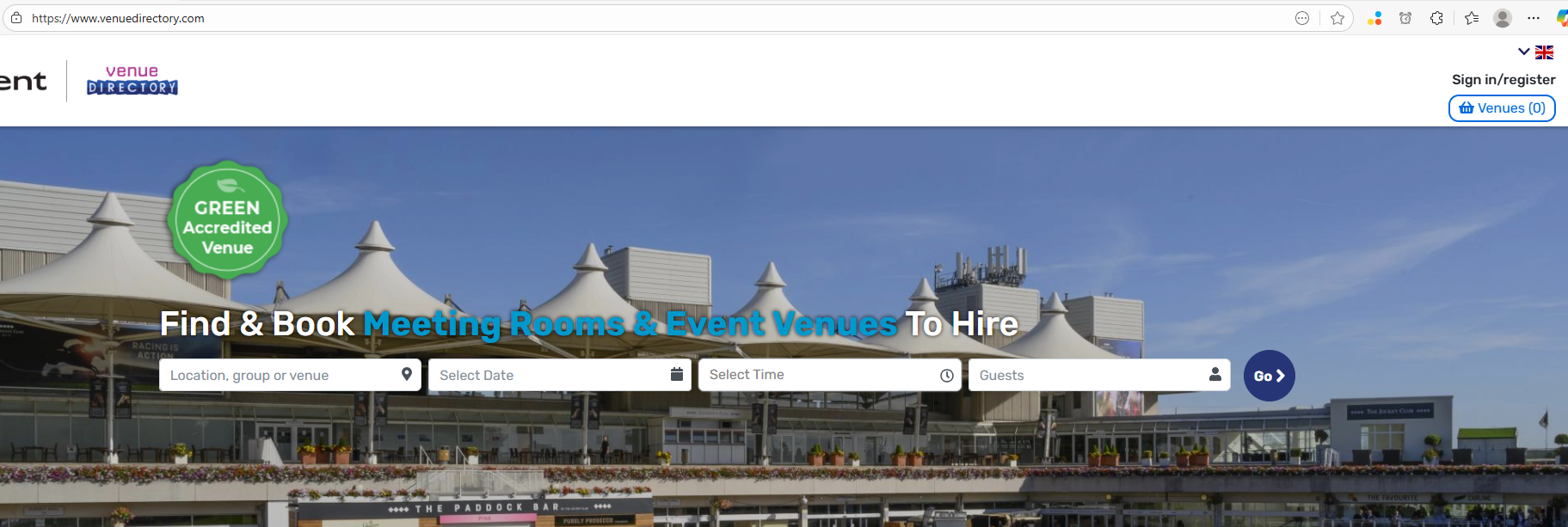
- Open your browser and go to: https://www.venuedirectory.com/
2) Search for venues
- On the homepage, use the search bar to enter a location or venue name, select a date and time, and add the number of guests.
- Click Go (or press Enter) to see matching venues.
3) Refine your results
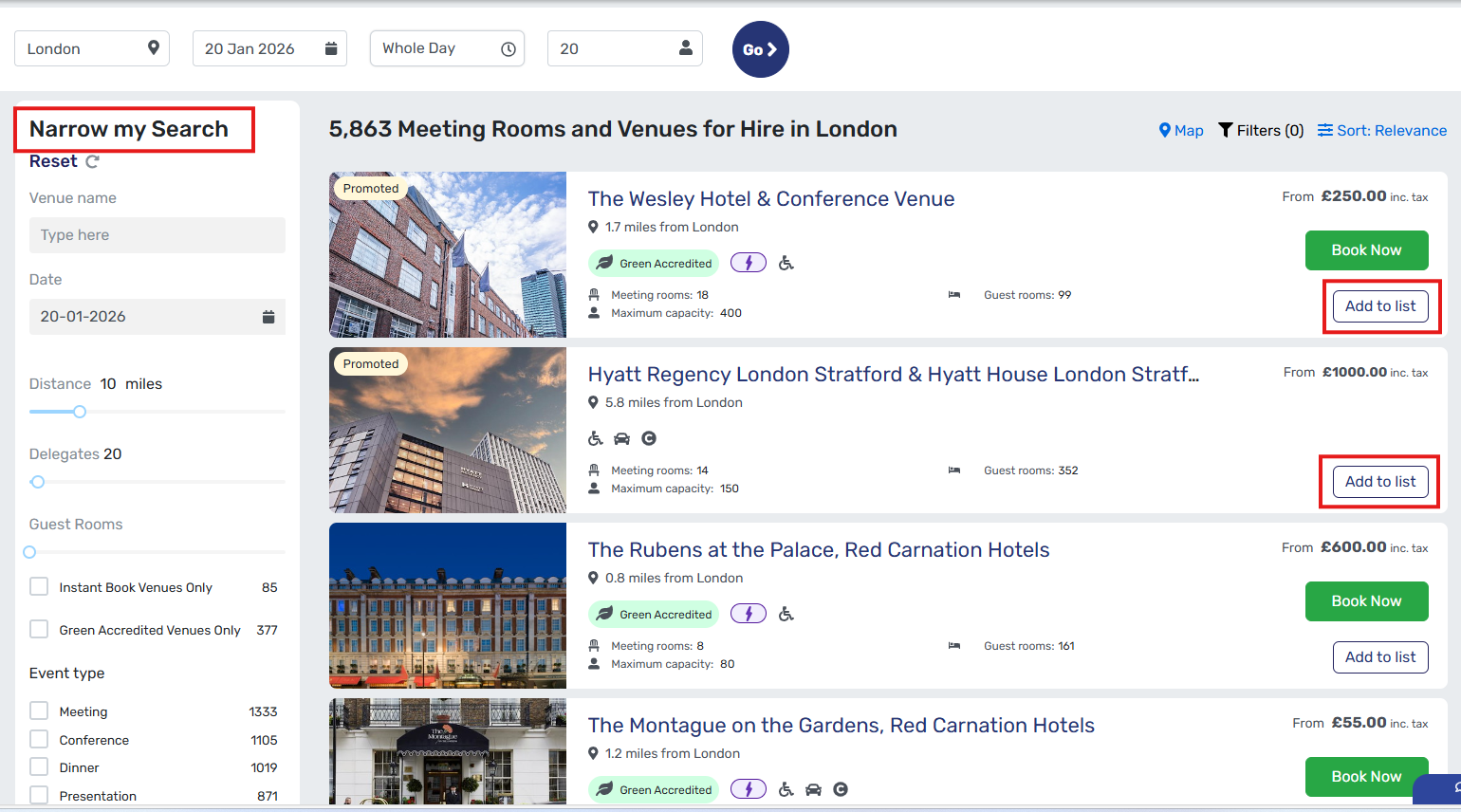
- Use the filters on the left to narrow the list (for example, Instant Book or Green Accredited venues).
4) Add venues to your shortlist
- Click Add to list on each venue you’re interested in. You must add at least one venue before you can open the enquiry form.
5) Review your enquiry
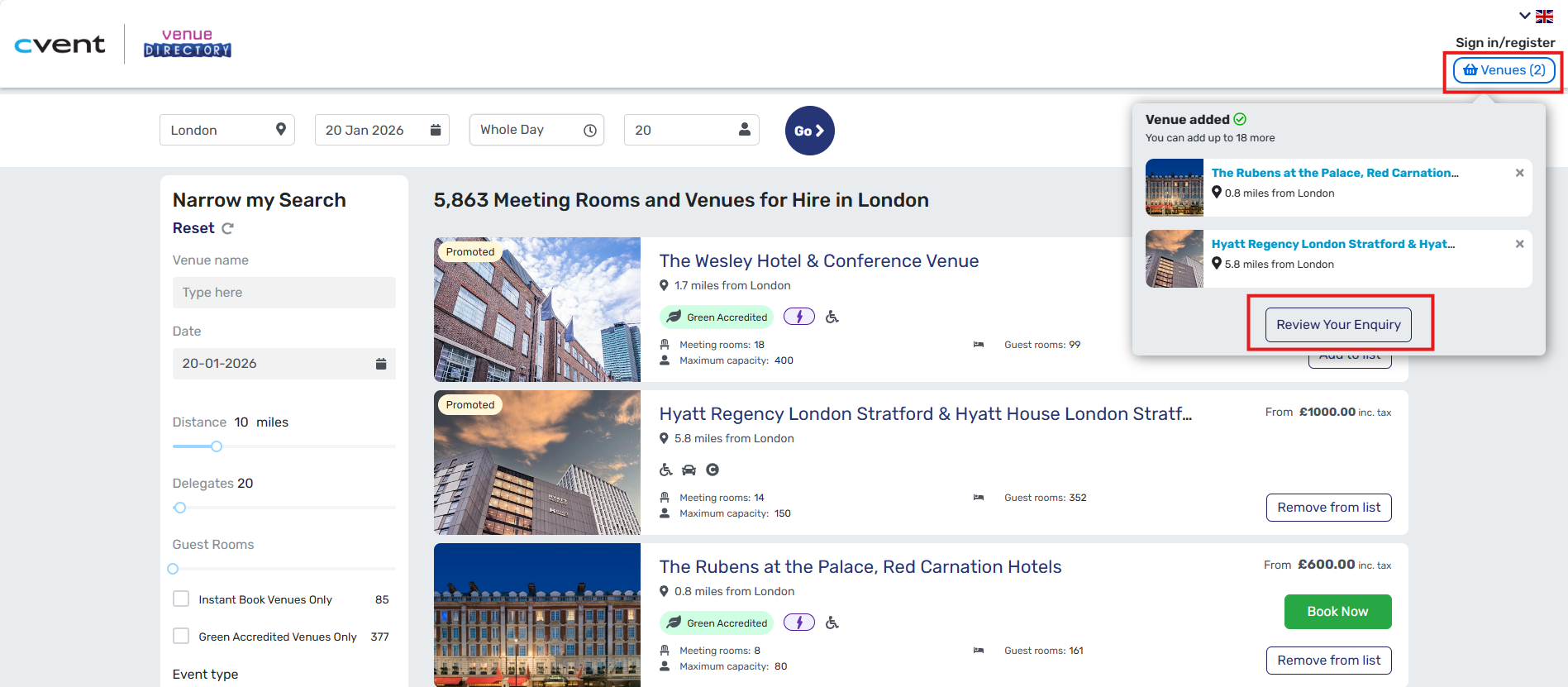
- Open your basket (top right) and click Review Your Enquiry.
6) Complete the enquiry form
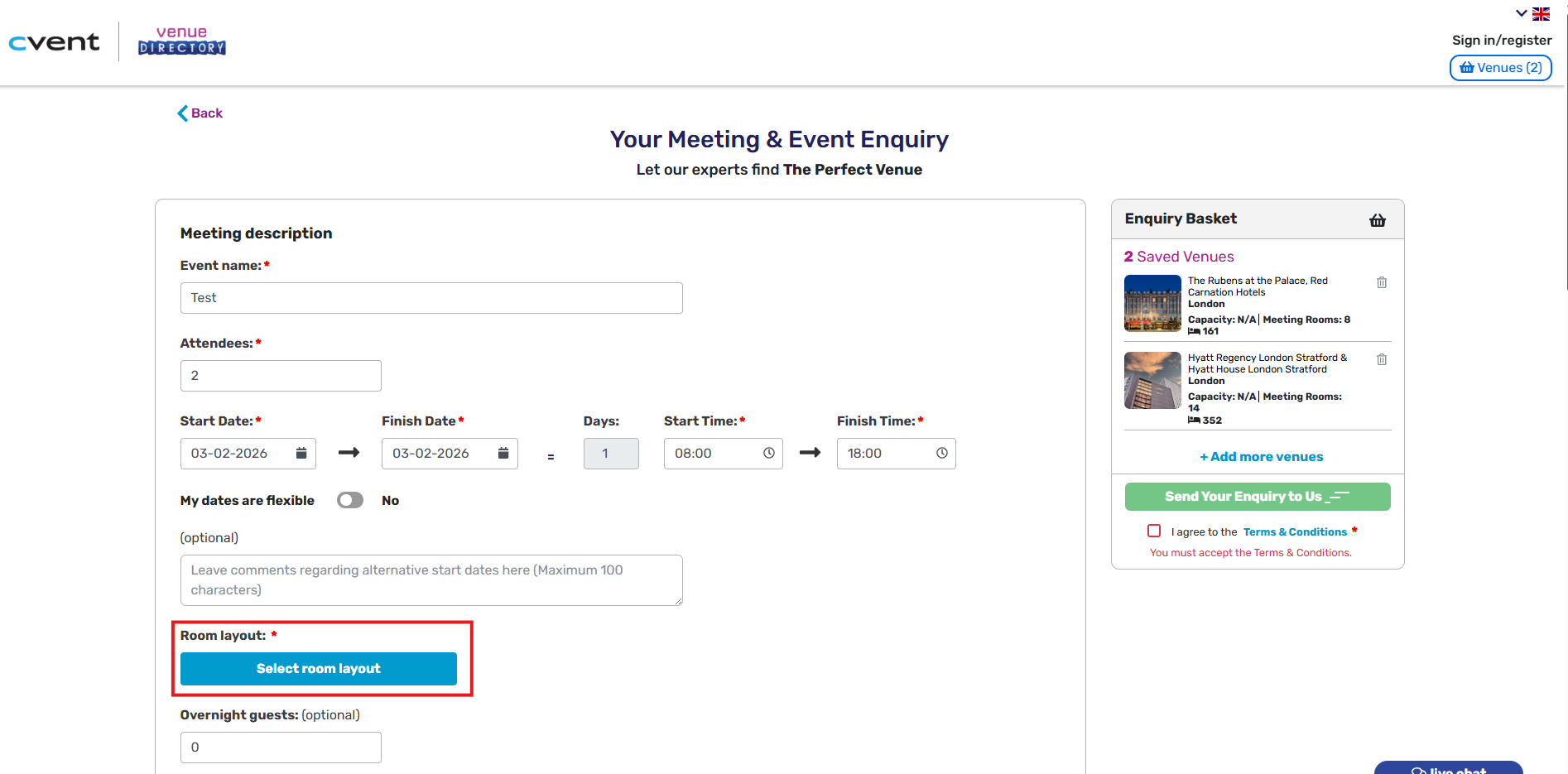
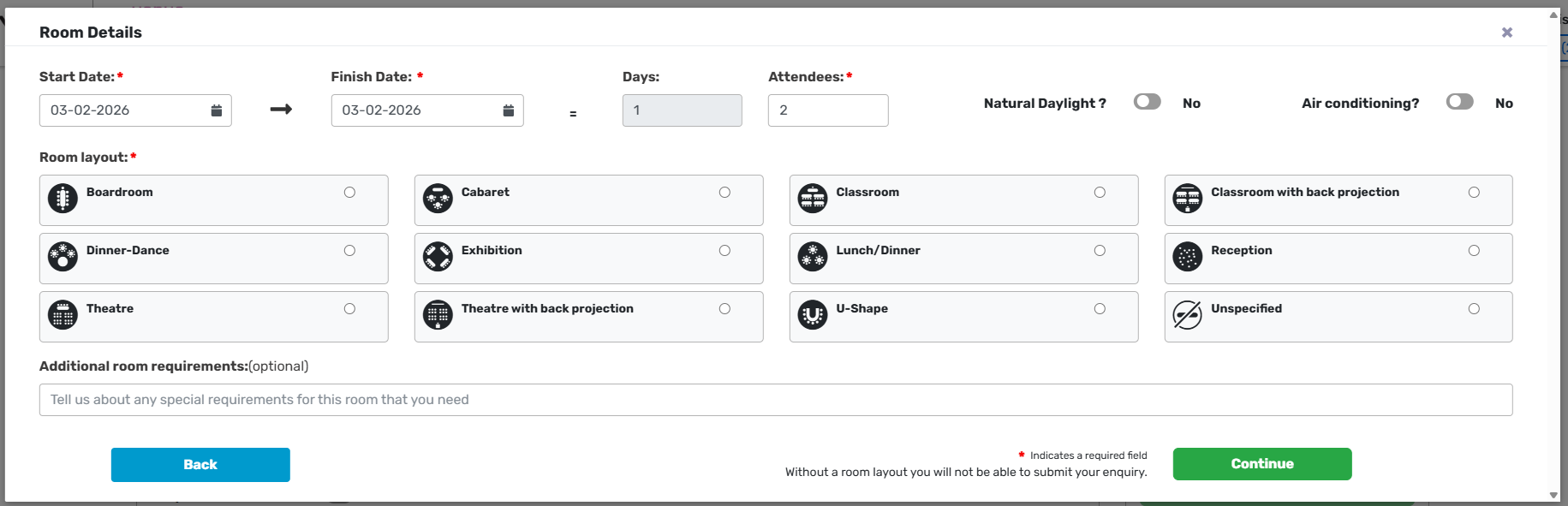
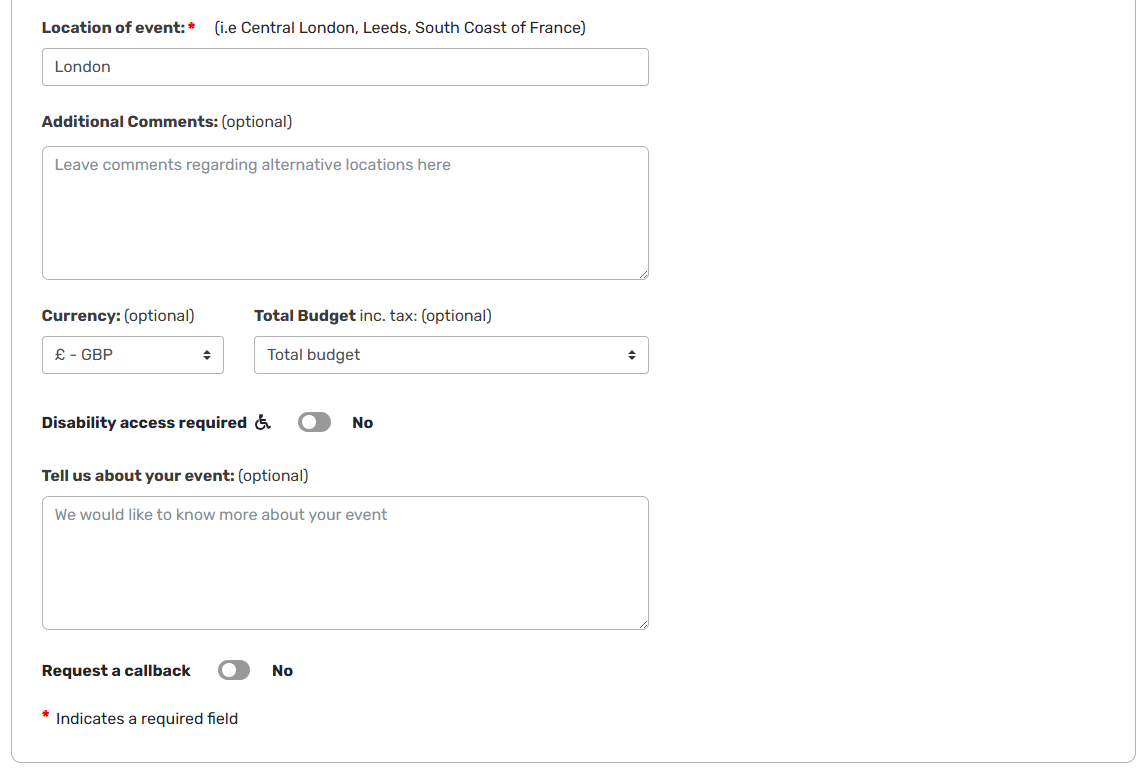
- Fill in the event details (date/time, attendee numbers, room setup, notes, etc.). Provide as much information as possible so venues can respond accurately.
- Fields marked with a red asterisk are mandatory and must be completed.
7) Accept terms and conditions
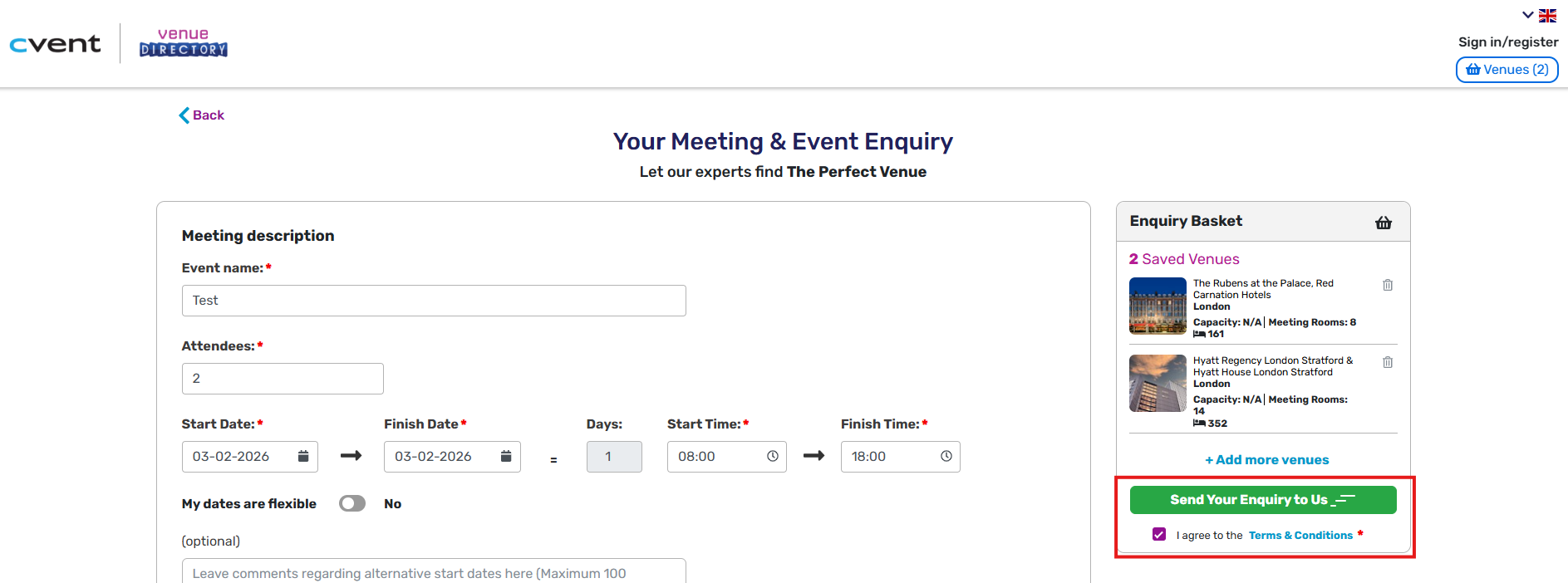
- On the right-hand side of the page, select I agree to the Terms & Conditions.
8) Sign in or register
- To submit your enquiry, you’ll need to sign in. If you don’t have an account yet, click Register and complete the short form. The details you’ve entered in the enquiry are saved while you register.
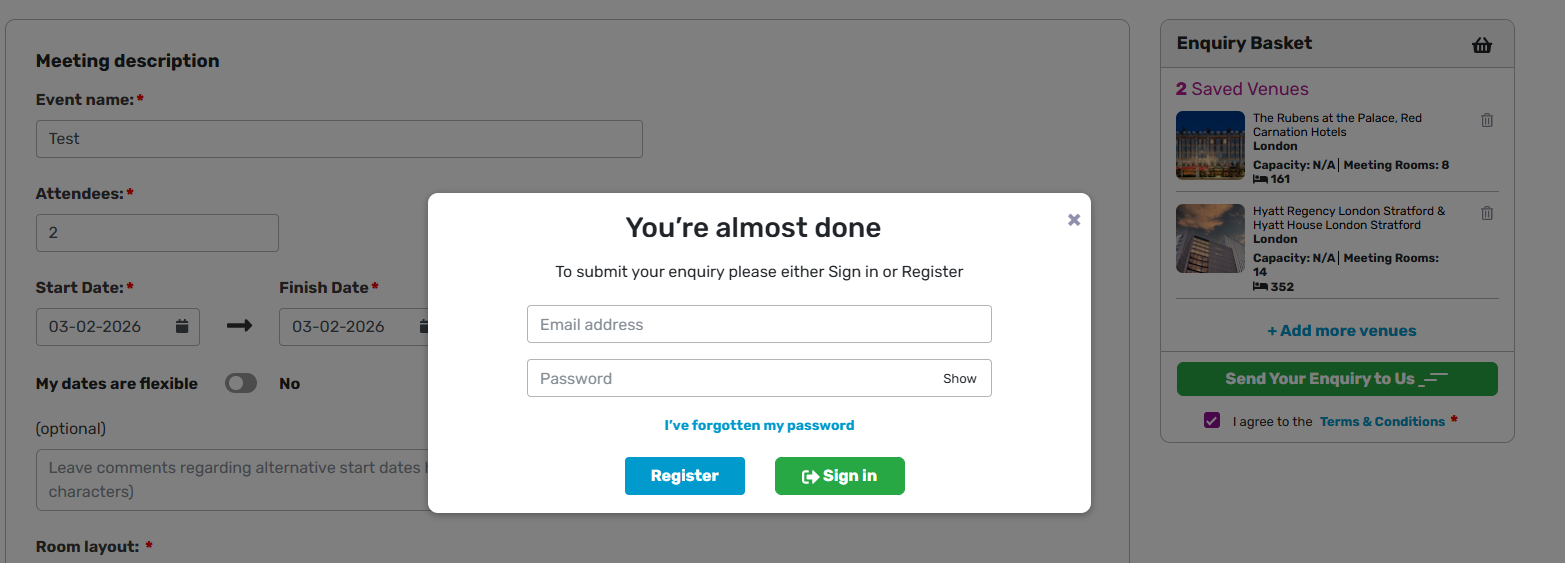
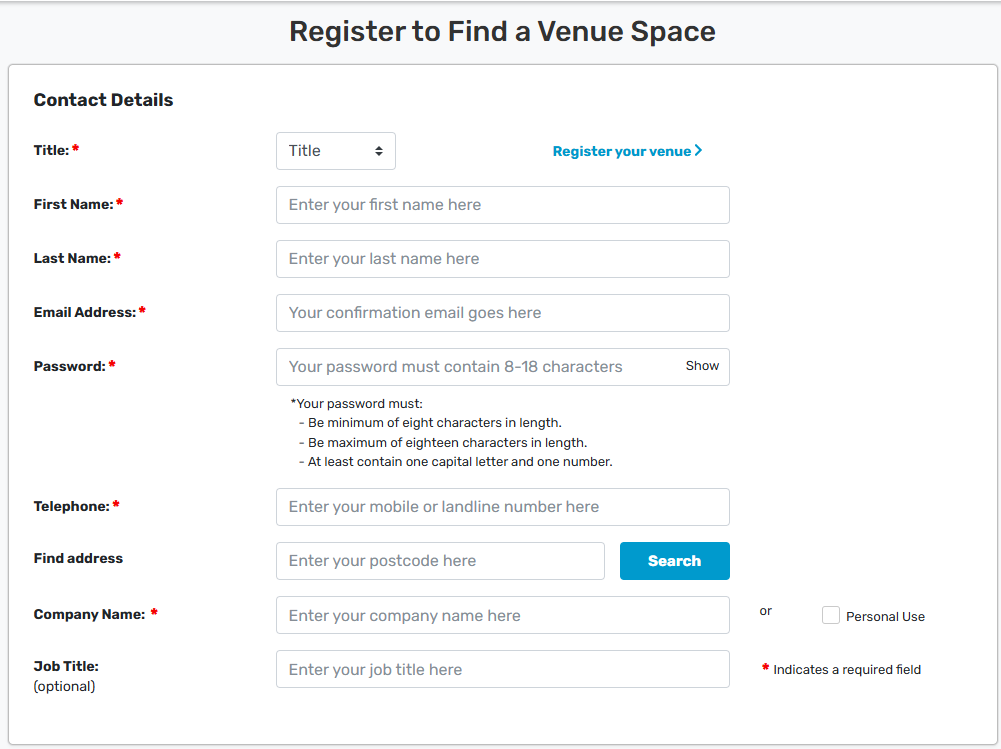
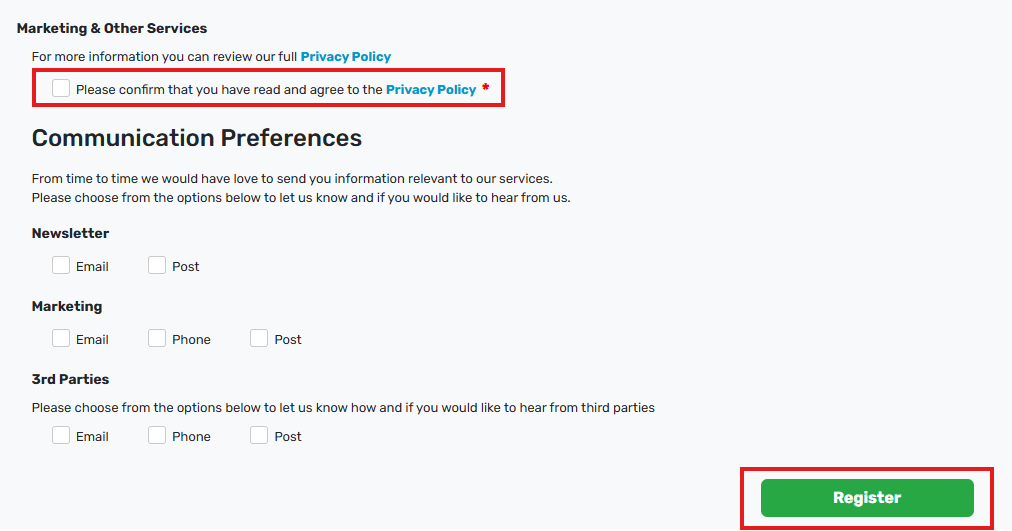
- After signing in, you’ll see a confirmation pop‑up indicating you can now send your enquiry.
9) Finalise your details
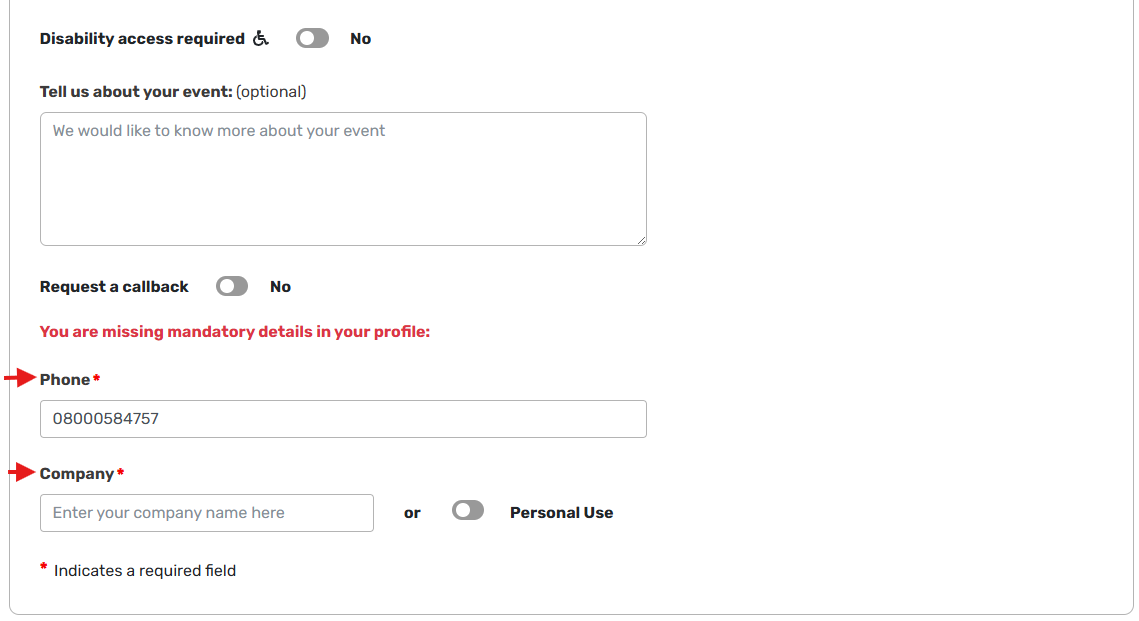
- At the bottom of the enquiry form, add or confirm your phone number and enter the company name for this enquiry. If the enquiry is personal (not company-related), indicate that as well.
10) Send your enquiry
- Make sure "I agree to the Terms & Conditions" is selected, then click Send Your Enquiry to Us.
11) Confirmation
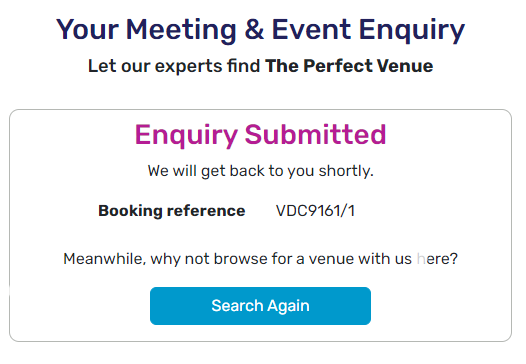
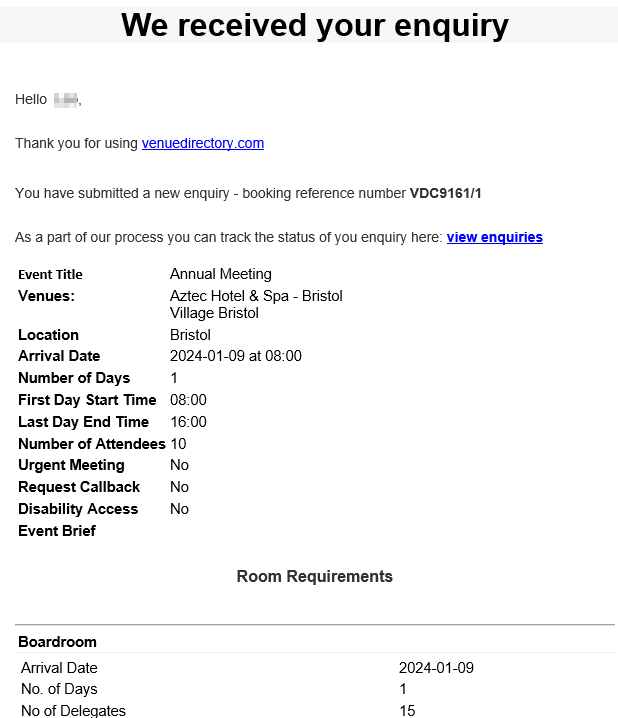
- You’ll see an on‑screen confirmation (including your enquiry reference) and you’ll receive a confirmation email. One of our venue team will process your enquiry and update you via the email address you registered with.
Tips
- Add multiple venues to compare options and receive a broader set of responses.
- Include key requirements (budget, preferred layout, AV needs, catering notes) to speed up venue replies.
Troubleshooting
- Can’t click Send? Check all mandatory fields (red asterisk) are complete, and that you’ve ticked I agree to the Terms & Conditions.
- Not seeing the submit button? Make sure you’re signed in (or registered) before submitting.
- Still stuck? Try refreshing the page, or sign out and back in.
- If the problem persists, contact Venue Directory Support at venuesupport@venuedirectory.com.
Was this article helpful?
That’s Great!
Thank you for your feedback
Sorry! We couldn't be helpful
Thank you for your feedback
Feedback sent
We appreciate your effort and will try to fix the article