Our Super Admin User feature allows one individual to have additional access to make venue listing decisions and amend user access.
A Super Admin User will be able to add, edit and delete users and also provides the functionality to update and maintain financial information. No other user at the venue will have the functionality to do this.
A Super Admin User may be assigned to every venue.
A user may be the Super Admin for more than one venue.
The Super Admin must have the user profile of a Venue Manager or a Venue Group Manager.
TABLE OF CONTENTS
- How to view who is the Super Admin for your venue?
- How to add a new user when you are Super Admin
- How to edit a user
- How to delete a user
- How do I change the Super Admin?
How to view who is the Super Admin for your venue?
User information for your venue can be viewed if you have the user profile of a Venue Manager or Venue Group Manager.
To see who has been assigned as the Super Admin for your venue, simply log into www.myeventschannel.com and select Venue Profile. Then select the "Users" tab.
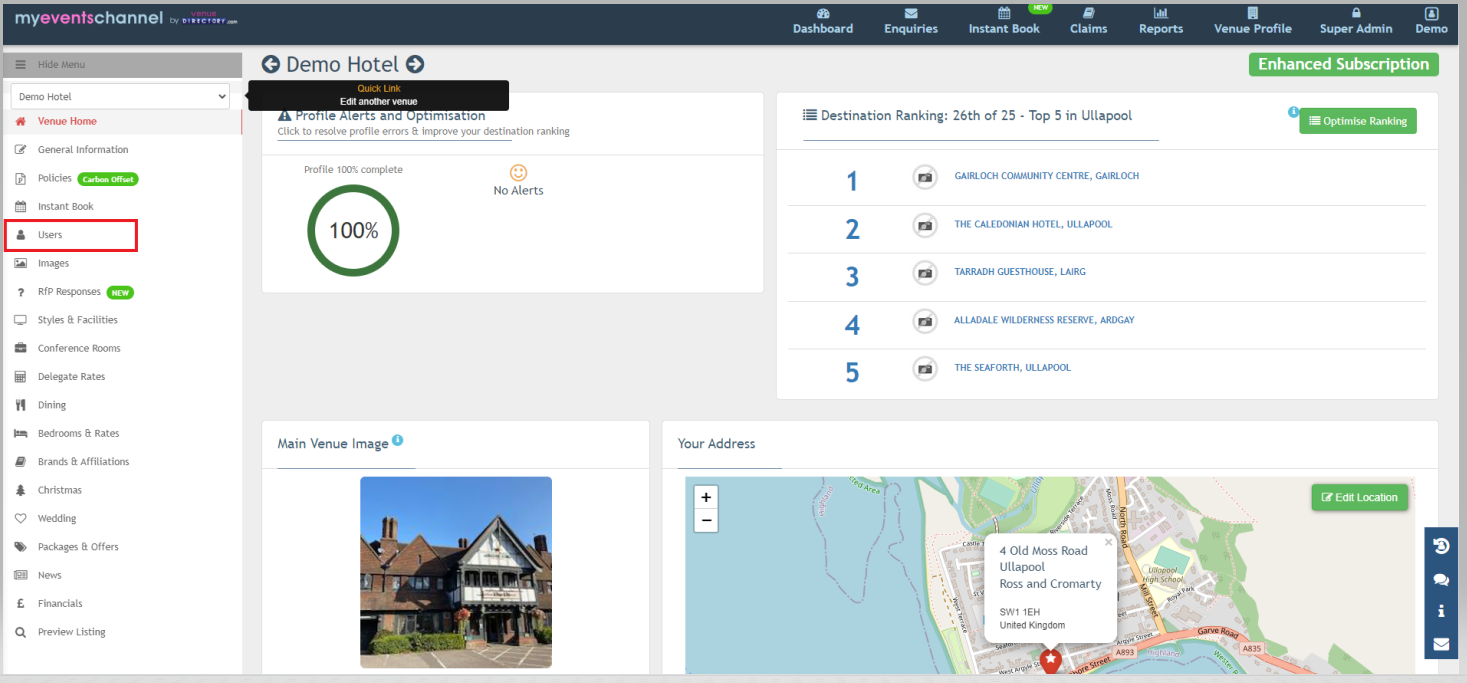
You will then be presented with the tab of users with each column a different heading. To find who is assigned the Super Admin User, find the heading "Super Admin" and then look down the list of users to see which user has a green tick against their name in the "Super Admin" column.
How to add a new user when you are Super Admin
Ensure you are logged into www.myeventschannel.com.
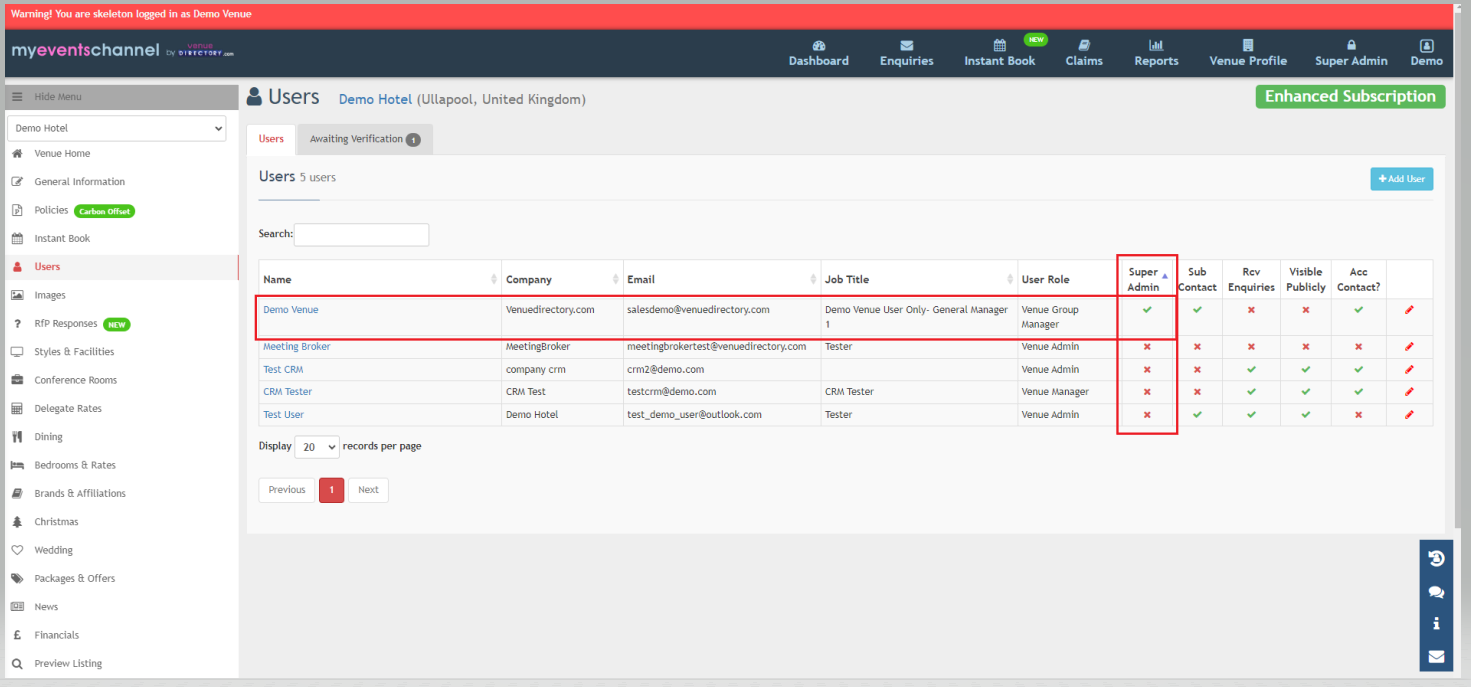
Select the Super Admin Profile - this will display the venues you are nominated as the Super Admin for. You will only be able to add users for venues where you are the nominated Super Admin.
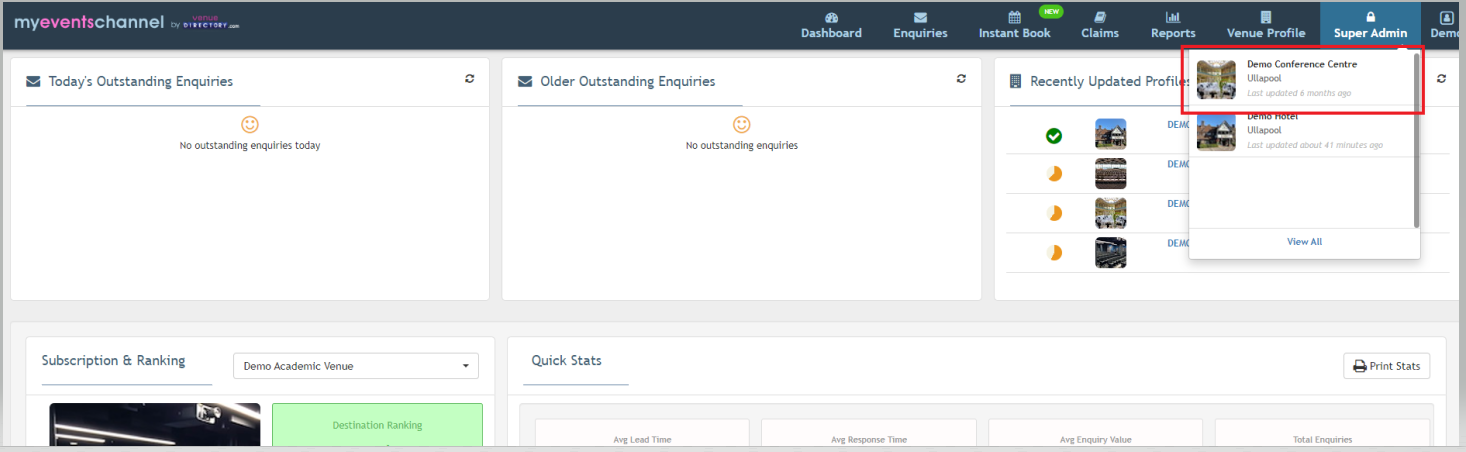
Select the venue you would like to add the user to and navigate to the Users tab. Once you have selected the users tab in the top right hand corner of this section, select the "Add User" button.
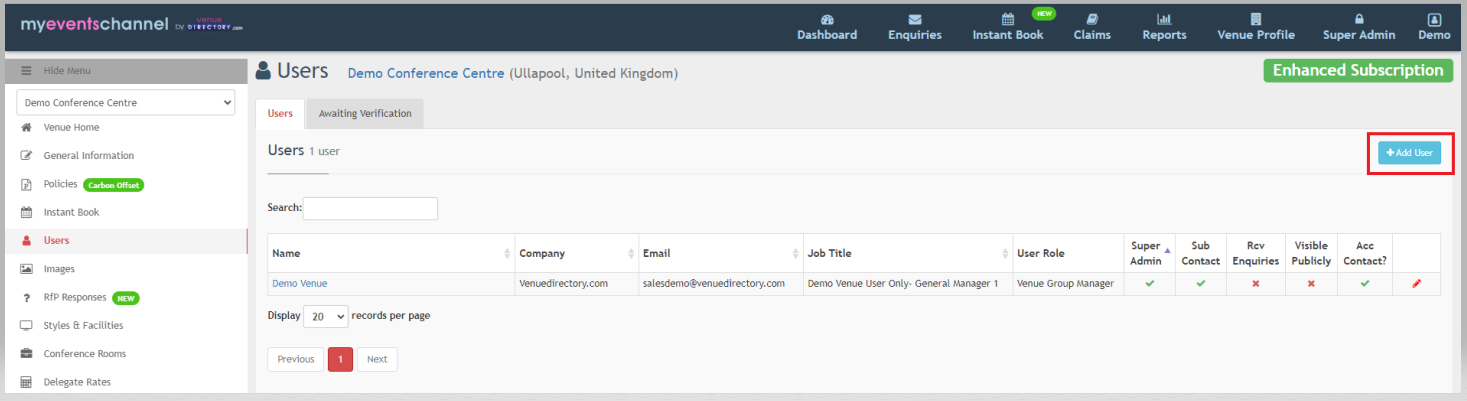
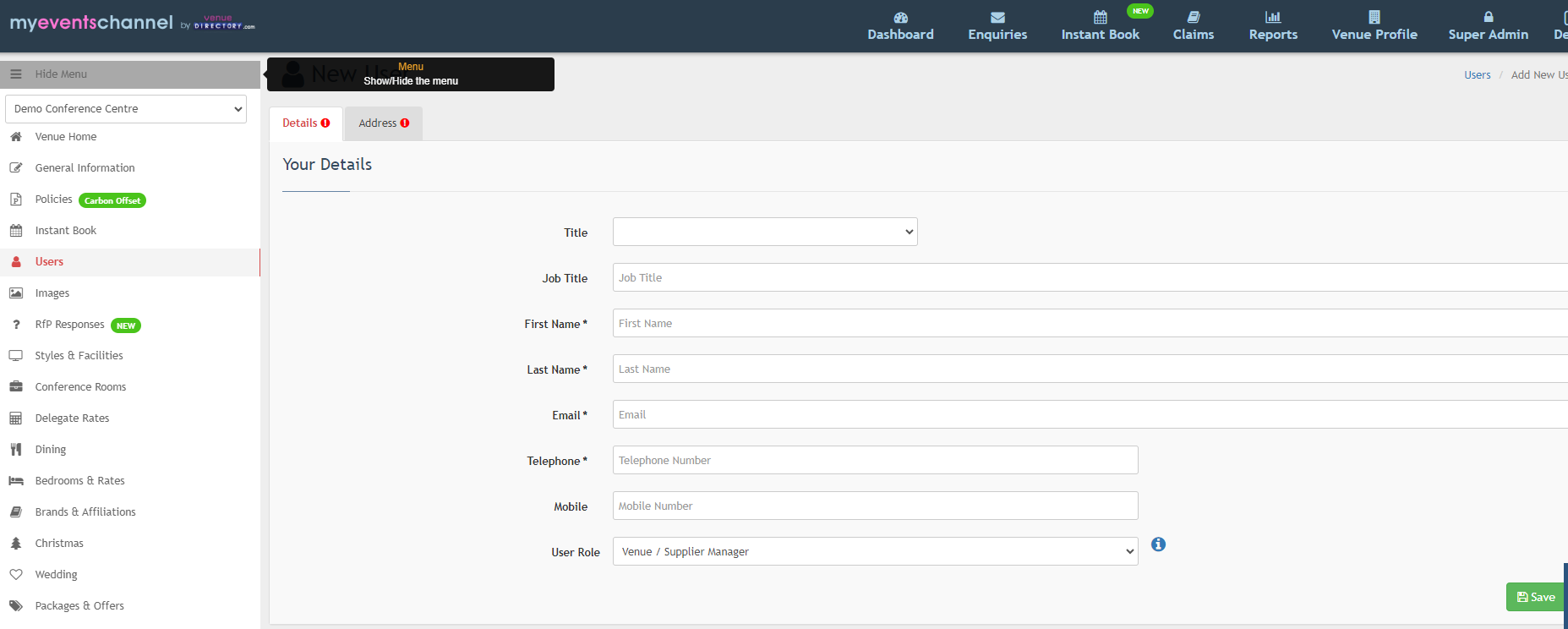
You will then be presented with the New User screen. Please ensure you complete all the fields and select the correct user access level ensuring you click the "Save" button when you have completed all the fields.
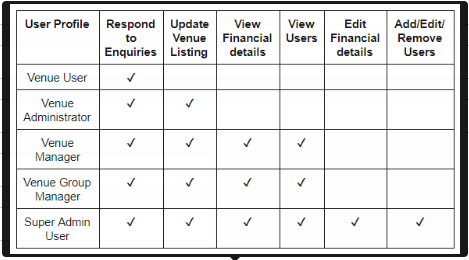
The user access levels are shown here:
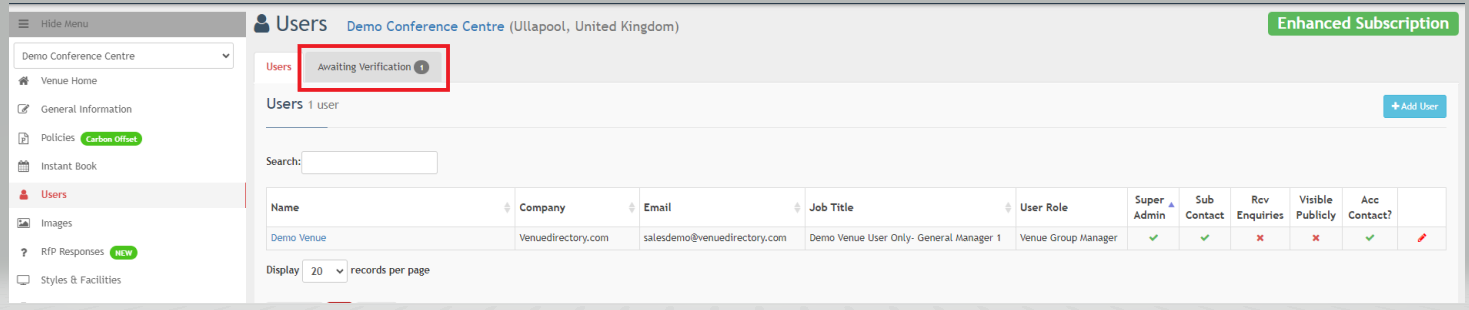
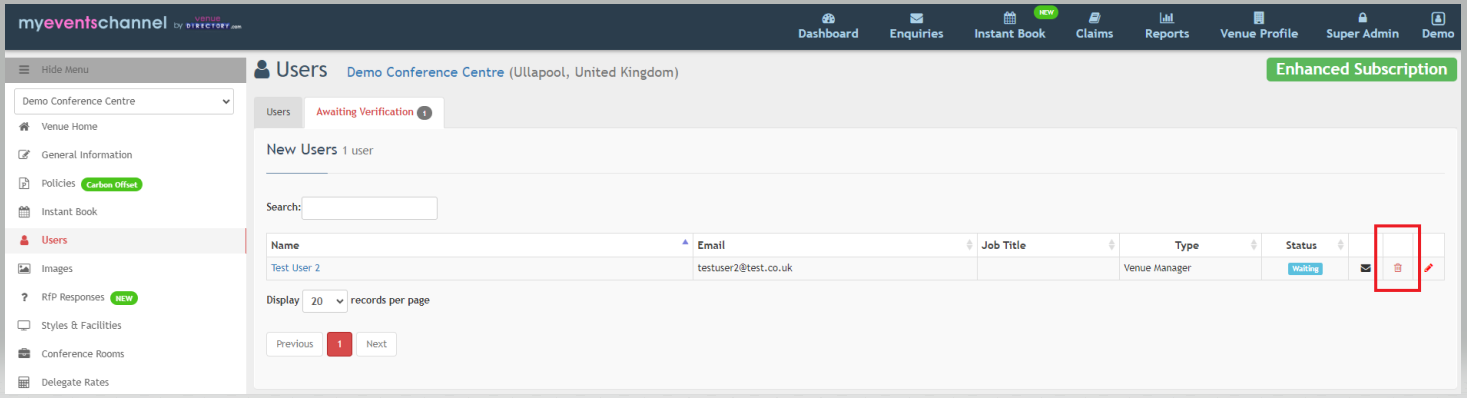
The new user will then be sent a verification e-mail inviting them to verify their account, set their contact preferences and agree with the Privacy Policy and Terms and Conditions. They will also be prompted to set a password. Until they have completed these steps, you can view the user within the "Awaiting Verification" tab. Once they have completed the verification, they will then display in the list of verified users in the "Users" tab.
The verification e-mail will expire after 24 hours. Clicking on the envelope alongside their name will re-send this.
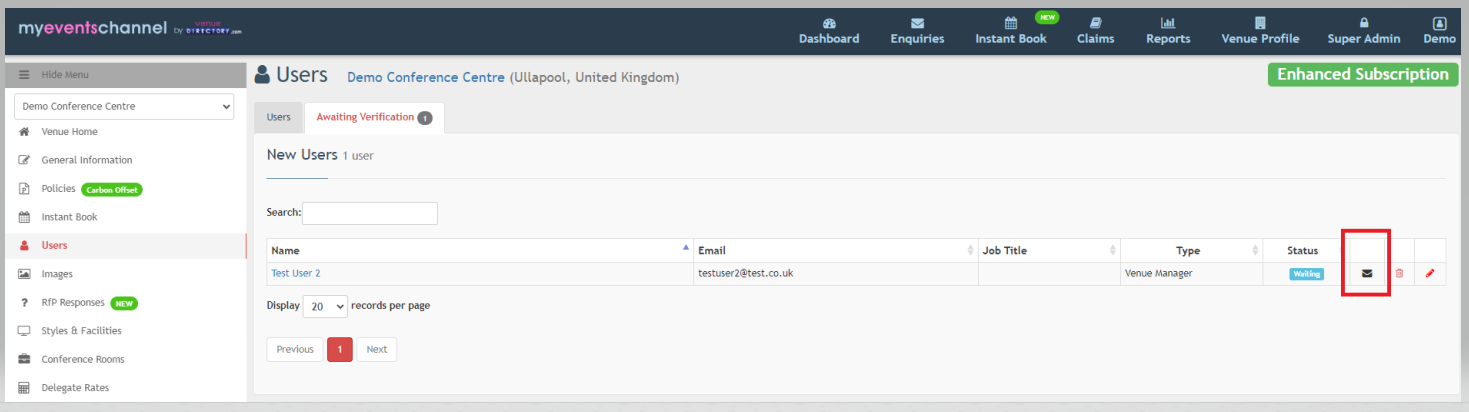
Clicking on the bin icon will delete the user.
How to edit a user
Ensure you are logged into www.myeventschannel.com.
Select the Super Admin Profile - this will display the venues you are nominated as the Super Admin for. You will only be able to add users for venues where you are the nominated Super Admin.
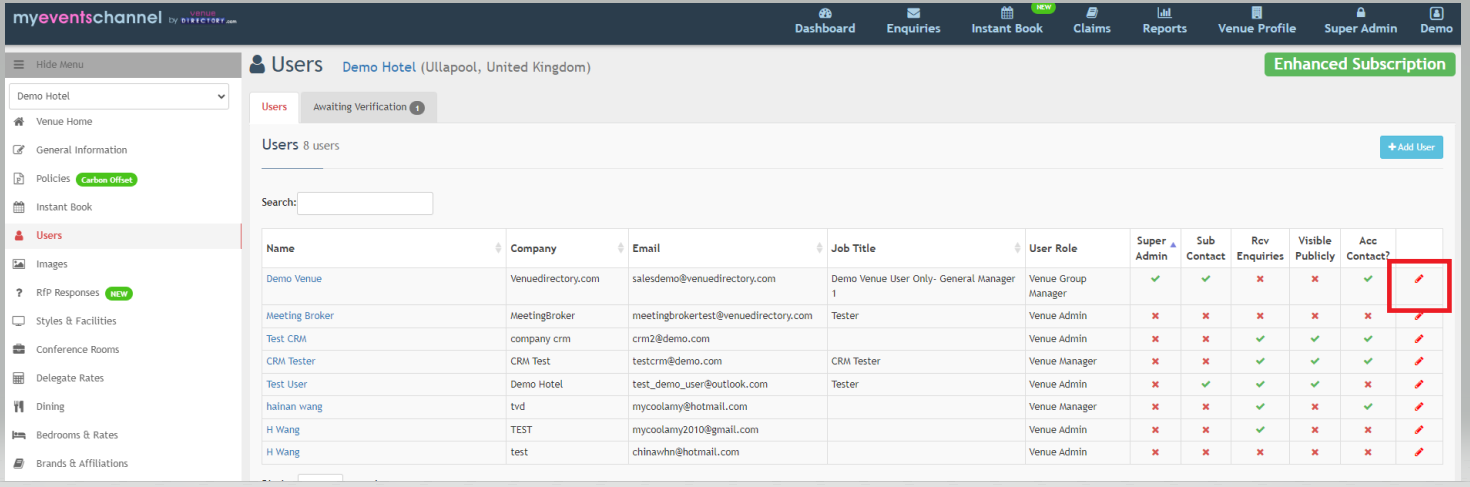
You will be able edit the details that are highlighted in red by clicking on the pencil icon at the end of the row.
This will then bring up the user's profile. You can then amend their name, telephone number, job title or postal address. You will not be able to amend the user's e-mail address. If this has changed, you MUST delete the existing user and add a new user using the new e-mail address.
Due to GDPR regulations you will not be able to edit the Contact Preferences for the user. This is something the user themselves will need to do by logging into their account and amending this under their profile contact preferences.
Any user that is not highlighted in red you will not be able to amend the details for. You may need to contact our venue support team to make these changes for you.
How to delete a user
Ensure you are logged into www.myeventschannel.com.
Select the Super Admin Profile - this will display the venues you are nominated as the Super Admin for. You will only be able to add users for venues where you are the nominated Super Admin.
Then click on the pencil icon by the user you would like to delete. This will then take you to the user profile. Then select the "Delete this user" button.
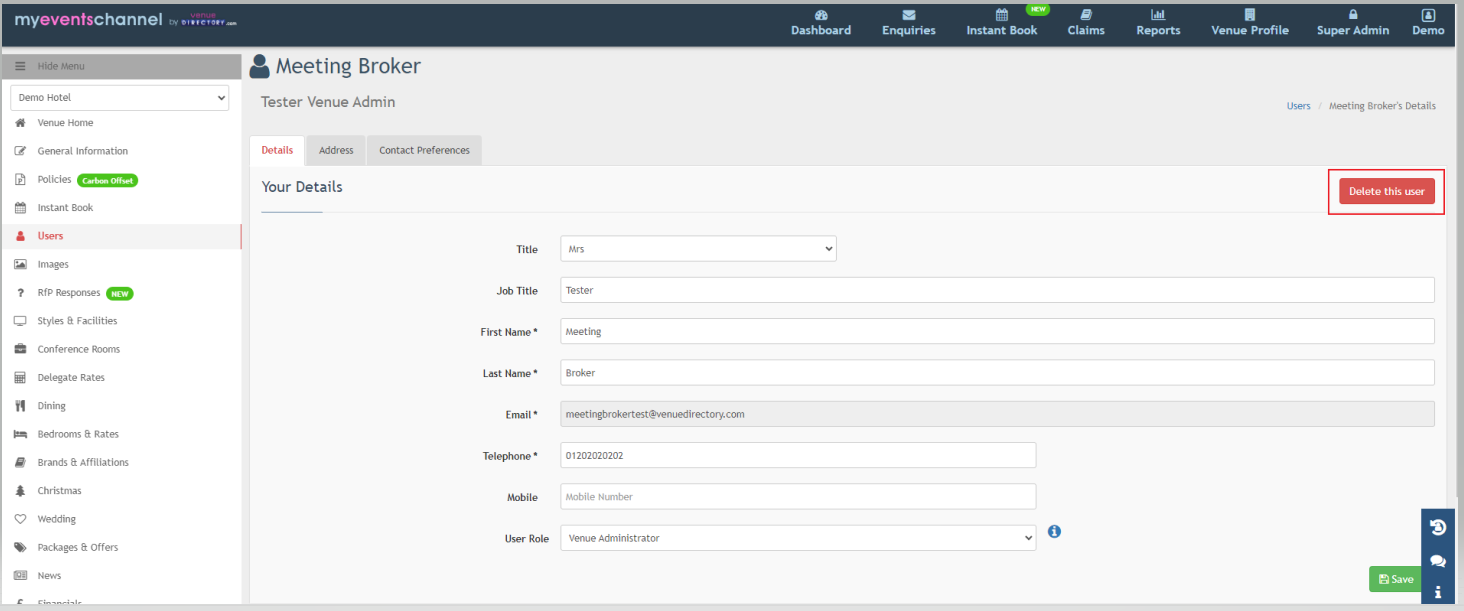
If you try to delete a Venue Group Manager you will receive a notification that this action has been requested. An email will be sent to venuesupport@venuedirectory.com who will then action that request for you.
How do I change the Super Admin?
Only the current Super Admin can change this.
Again, log in via www.myeventschannel.com and select the Super Admin Profile.
Select the venue you would like to amend the Super Admin for.
Navigate to the "Users" tab and then select your own name from the user list and Switch off the Super Admin button.
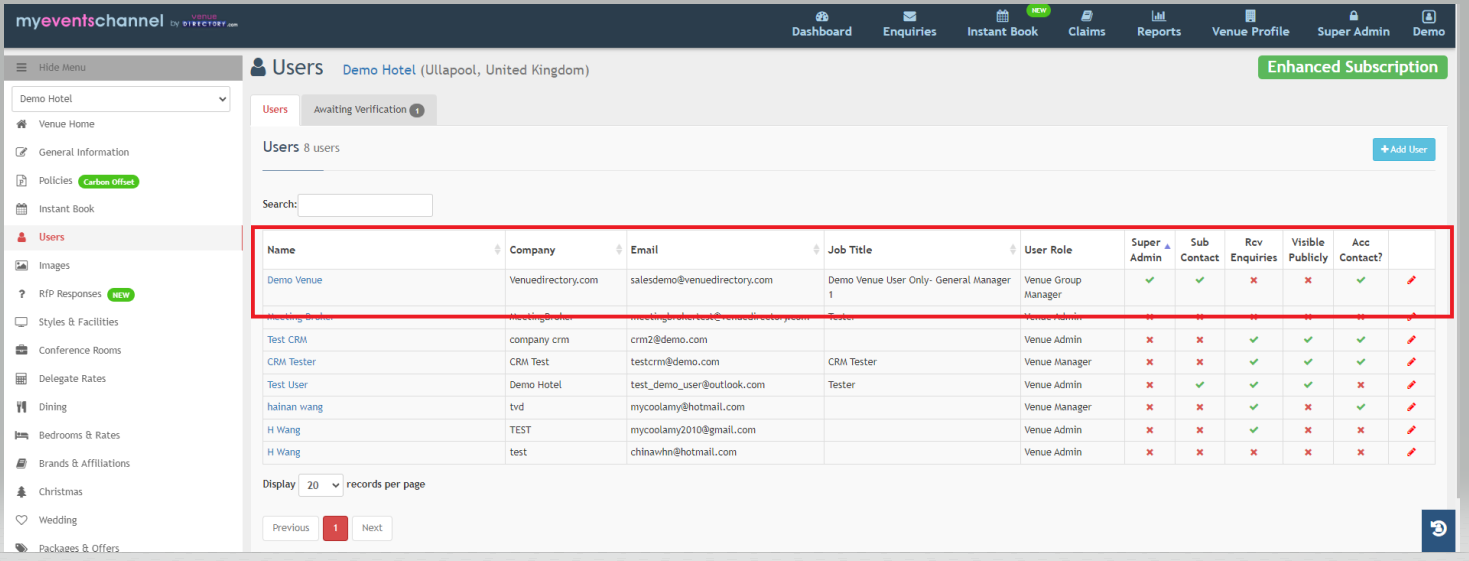
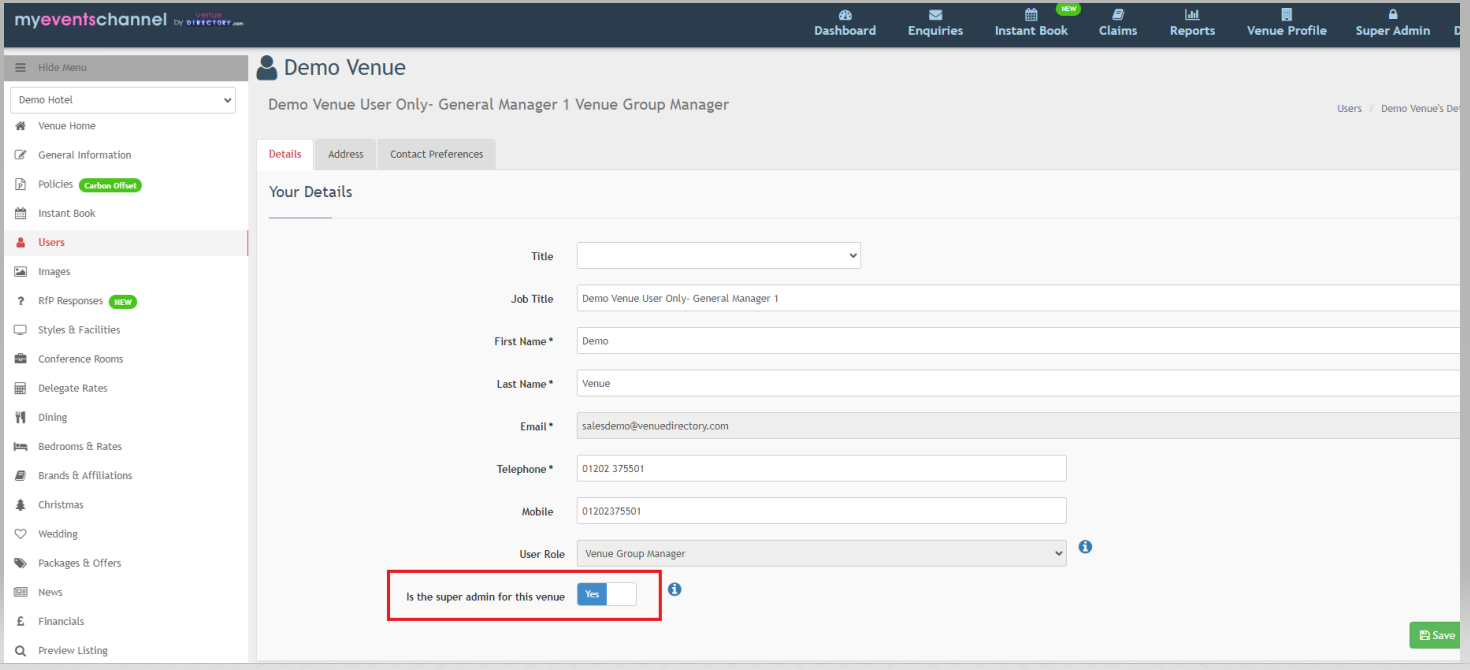
You will then receive a prompt asking to confirm if you would like to remove yourself as the Super Admin. Click "Yes"
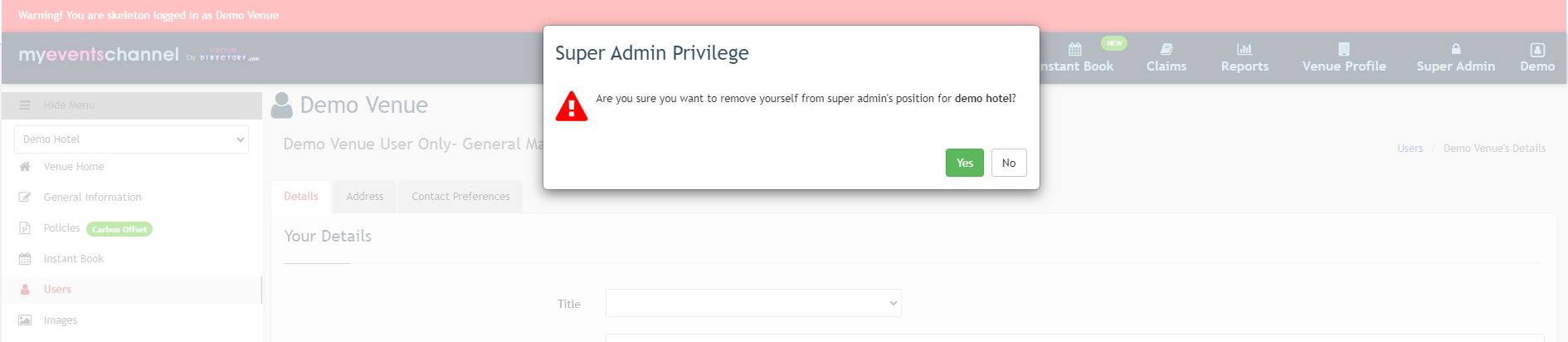
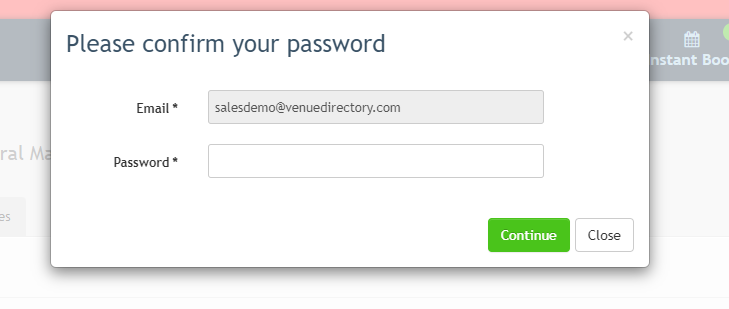
You will then be asked to enter your password for security purposes. Please enter this.
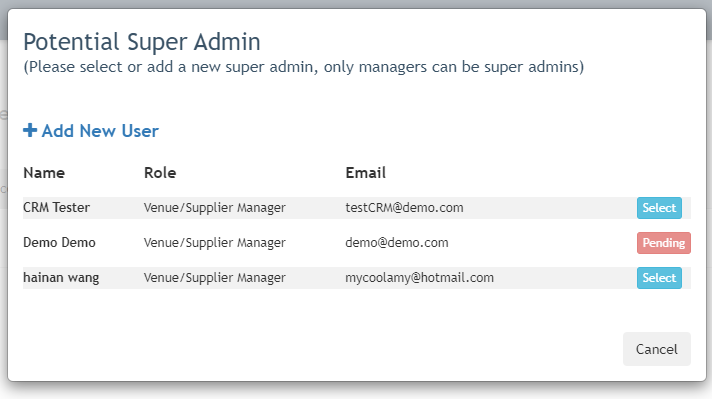
Once you have entered your password you will then be asked to select from a list of eligible users a new Super Admin. Please be aware that if you have a potential Super Admin and the status is set as "Pending" you will not be able to select this user. This is because the user has not yet completed the verification process and is still awaiting verification. Once they have completed this, their user will change to a verified user and you will then be able to select this user as the new Super Admin User.
Once the new Super Admin has been selected. your profile will update and the new Super Admin will be ticked in the users tab as the new Super Admin.
Remember only a Venue Manager or a Venue Group Manager can be a Super Admin.
If you wish to select a user with a Venue Administrator profile as the Super Admin, you will need to update their user profile to Venue Manager first.
Was this article helpful?
That’s Great!
Thank you for your feedback
Sorry! We couldn't be helpful
Thank you for your feedback
Feedback sent
We appreciate your effort and will try to fix the article