TABLE OF CONTENTS
- Venue Profile
- General Information
- Policies
- Users
- Images
- RfP Responses
- Styles & Facilities
- Conference Rooms
- Delegate Rates
- Dining
- Bedrooms
- Brands and Affiliations
- Christmas
- Weddings
- Packages & Offers
- News
- Financials
Venue Profile
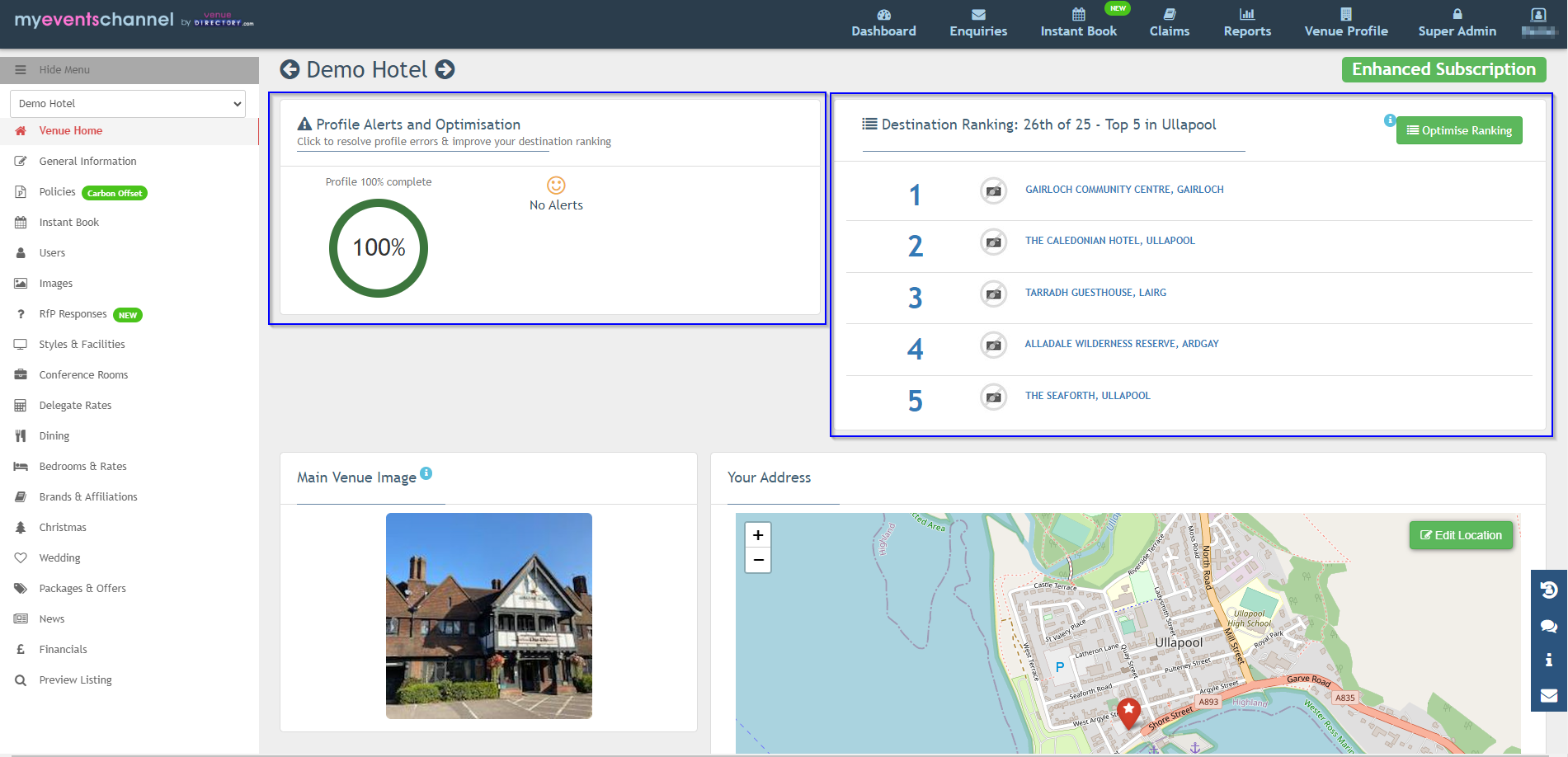
When you click on Venue Profile, it will take you to the Venue Home page. The first section shows the Profile Alerts and Optimisation.
If there are any alerts that need updating on the venue profile, this will show up as a yellow warning triangle and a description of what needs to be updated.
Next to this box is the Destination Ranking. You can press the green Optimise Ranking button once every 24 hours and it will immediately move you to the top of the list.
You can also see the main image for the venue on this page, as well as where it is pinned on the map, and the logo.
General Information
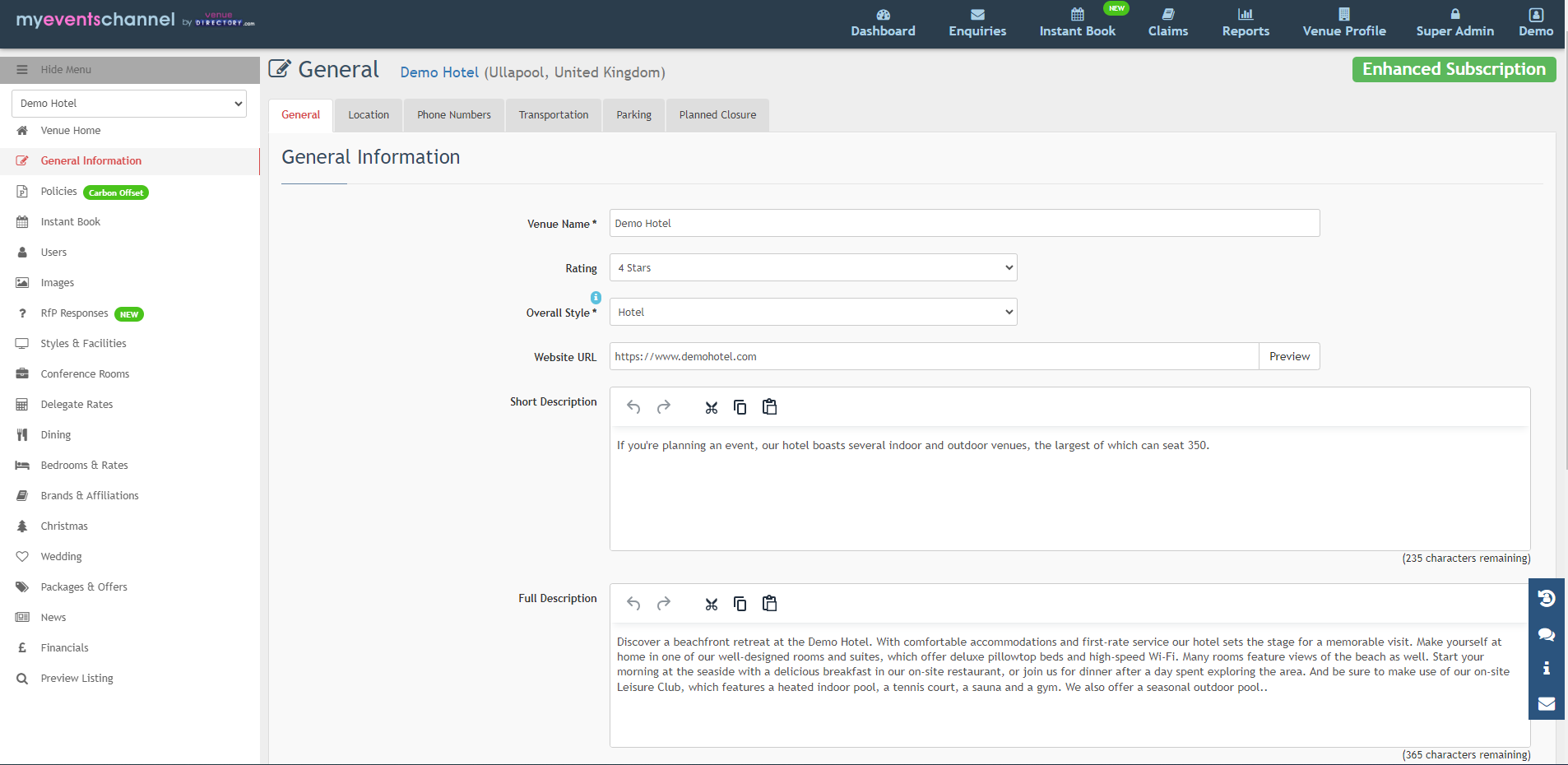
General: In this section, you can update the Venue Name, Rating, Overall Style, Website URL, Short description - a short overview of the venue, Full Description - a more in-depth description, Last Refurbished date, and whether the venue has Disabled Facilities.
Location: make sure the venue address is correct and the venue is pinned on the map into the correct location.
Phone Numbers: This is where you can display the main number for your venue and direct lines for different departments.
Transportation: This is where you can add directions to your venue, whether that’s from an airport, motorway, or train station.
Parking: You will be able to add your on-site/off-site parking information as well as any on-site/off-site electric charging points.
Planned Closure: If your venue needs to close for a period of time, you can add a planned closure to your listing. You would need to click Planned Closure - ‘Yes’, add the start date and reopening date. If you don’t know the reopening date, you can select ‘Reopening Date Unknown’. You would need to select the reason - Covid-19 Closure, Refurbishment, Seasonal Closure or Other. If you choose Other, you can type the reason into the details box.
Policies
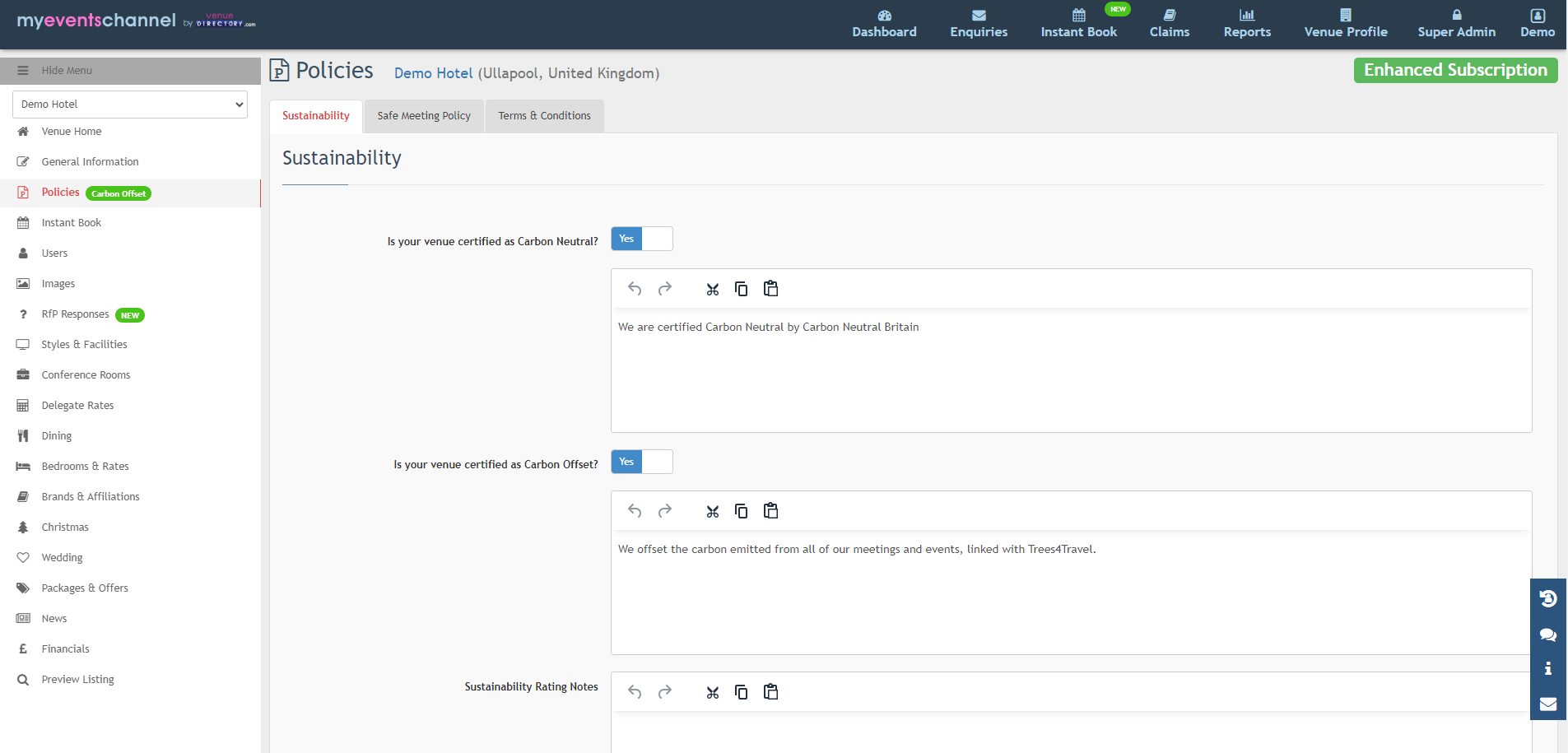
Sustainability:
Toggle on the Carbon Neutral setting if your venue is carbon neutral you can also select whether your venue is certified as Carbon Offset.
You can add your Sustainability Rating Notes and Corporate Responsibility in the boxes below.
Safe Meeting Policy: If you have a safe meeting policy you can add your Safe Meeting Policy text as well as the URL.
Terms and Conditions: You can add your own Terms and Conditions text and URL.
Users
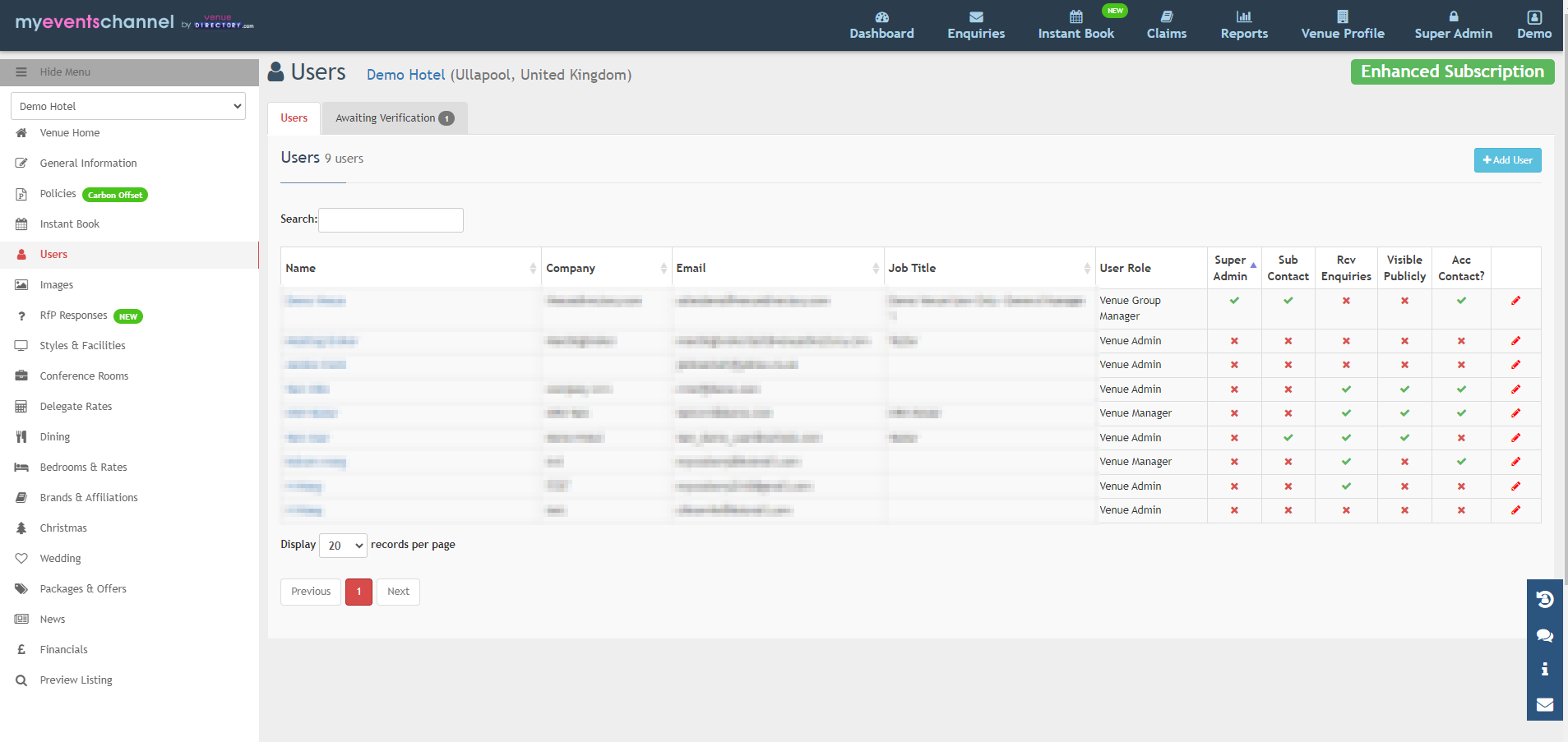
In the Users section, you are able to view all the active users for your venue listing as well as who is ticked to receive enquiries and who the accounts contact is
Please note, that only the Super Admin is able to make changes to the users section. The Super Admin will be able to add and remove users, except for Venue Group Managers. In this case, we would get an email, notifying us that the Super Admin wishes to remove a user. We would then check that they should be removed and action this for them.
The only change the Super Admin can’t make is the contact preferences of each user due to GDPR. Every user will need to log in and make these changes for themselves.
Images
The images section is one of the most important sections on the listing. There are only 6 images that will show up on a client proposal. These are the main image and the first 5 images in the General folder.
The first 5 images in the General section should be the best of the best images they have of your venue, showcasing your meeting and hireable spaces.
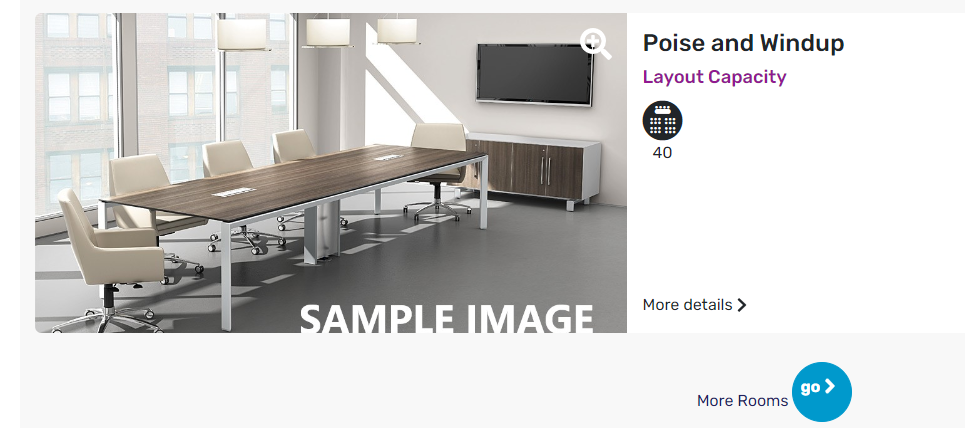
Make sure each meeting room has an image, otherwise, it will show up as a sample image on the venuedirectory.com and in the GRATIS search results which could mean the agent doesn't select the venue for the proposal.
RfP Responses
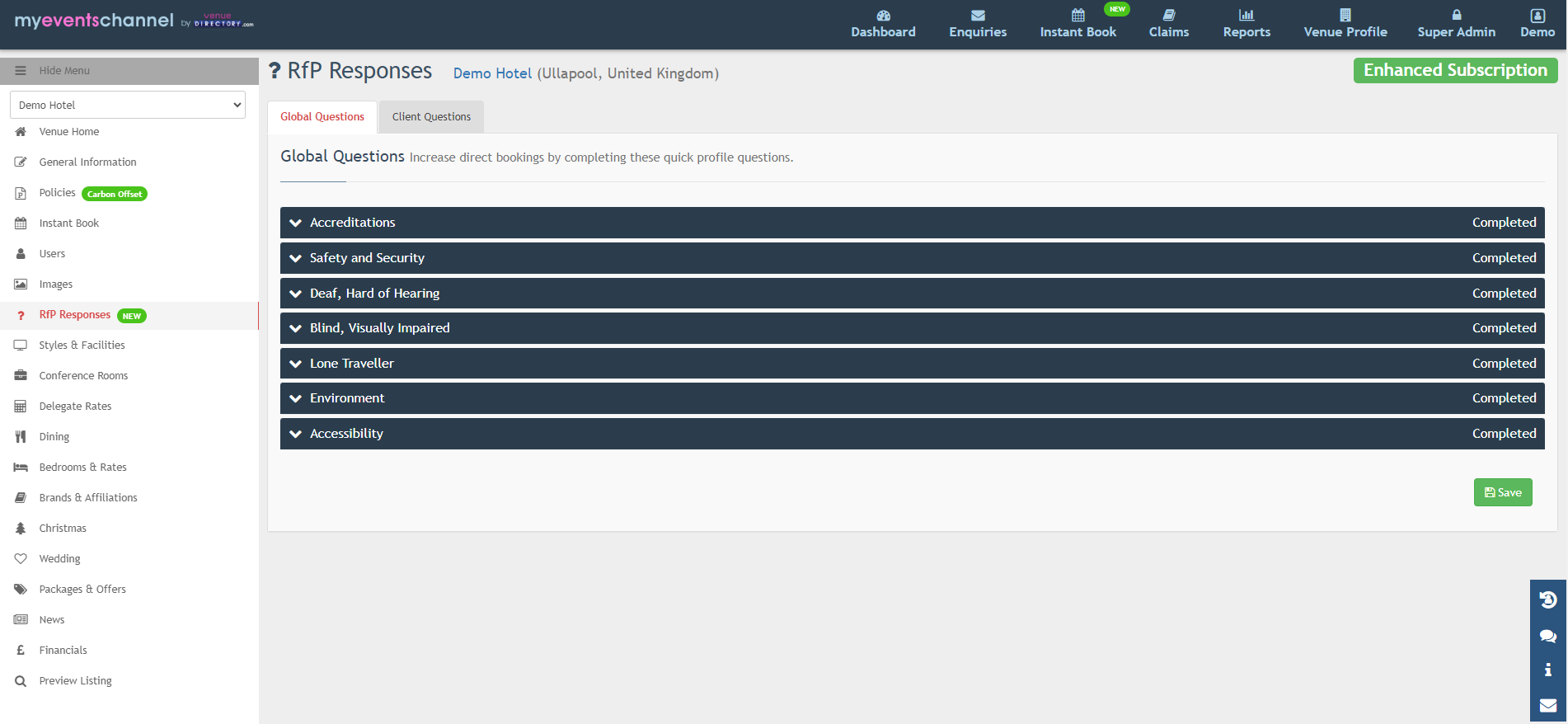
Under RfP Responses, you will see Global Questions and Client Questions.
Global Questions are general questions about the venue. We recommend you review these answers every 6 months to make sure they are all up-to-date and accurate.
Client Questions are agent-specific questions. If you go through and answer these questions it will speed up the enquiry response process.
You need to make sure that your Global Questions are completed. If they are not you will not be able to respond to enquiries,
Styles & Facilities
The agents/clients have up to 200 different filters they can use to find more specific venues for their meetings/events.
The majority of these filters can be found under the 'Styles & Facilities' section.
This means that the more information you have under this section the more chance you have to appear on searches and the greater visibility you will receive when agents/clients search for a venue. There is no maximum or minimum number for this.
Styles: You can have a maximum of 6 styles that best describe your venue. Simply click on the drop-down menu to select one at a time and click on ‘+Add’. Add up to 6 and press ‘Save’ before continuing to the next page, otherwise, the changes won’t save.
Facilities: List any facilities that are either available at or near your venue. Select from the drop-down menu, then choose whether it’s on-site or off-site and add the distance in miles.
Equipment & Services: Select any equipment that can be provided at the venue from the drop-down menu. Add the price, select whether it’s taxable or commissionable and add the maximum quantity available. If the equipment you’d like to add isn’t on the list, select ‘Other’ and free type.
Event Types: Select any events that can be offered at the venue. There is no maximum or minimum number for this.
Grounds: Select whether you have grounds (outdoor space) available for use. If you do select yes and add a description.
Conference Rooms
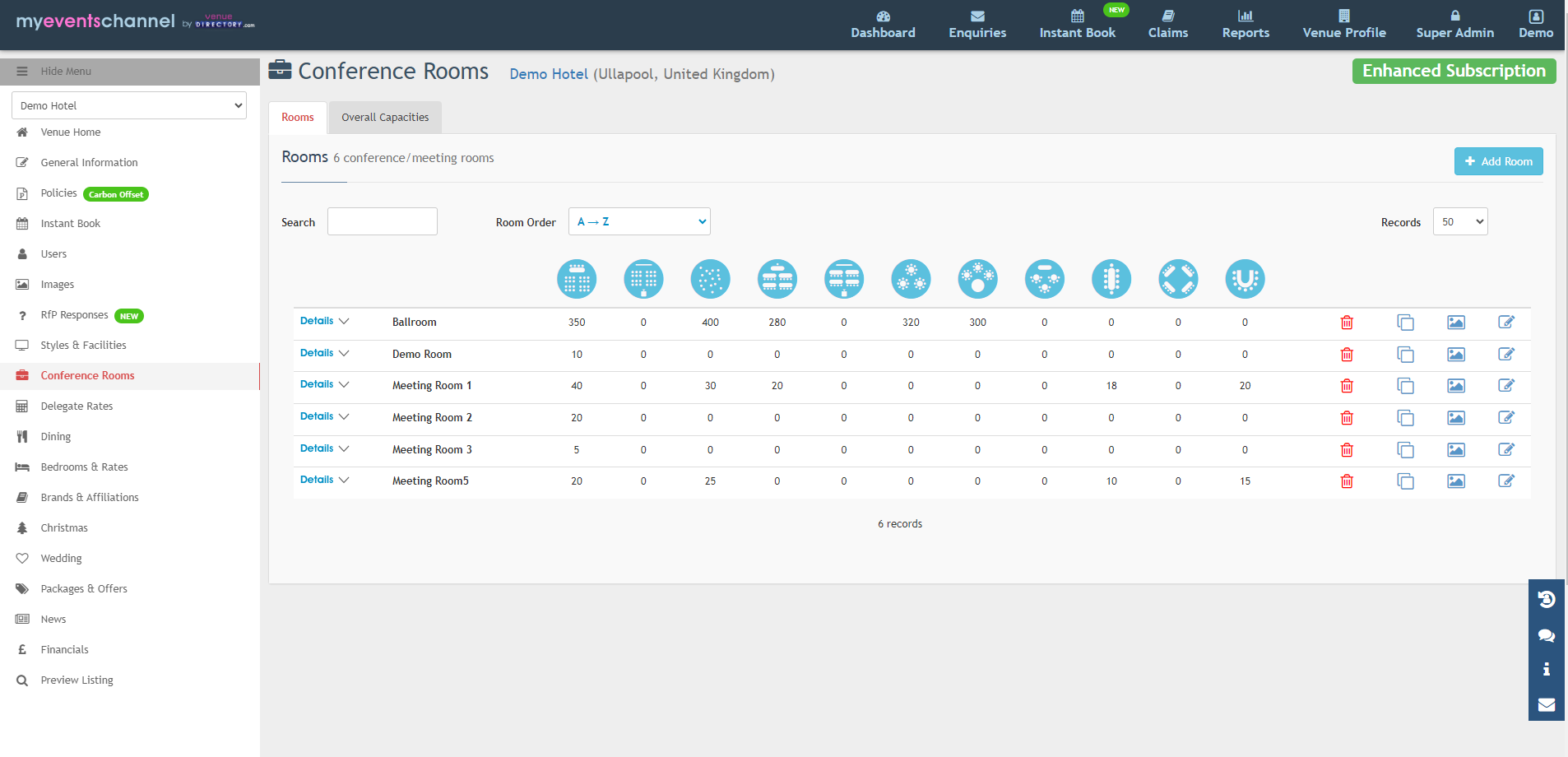
It's very important for the rooms to be loaded accurately with as much data as possible so the correct room can be assigned during the enquiry process.
If you would like to add a new conference room, you will need to click on ‘+ Add Room’
You need to add a room name, maximum capacity in theatre style, select the floor level, and add at least one room feature and the room description.
Once the room has been added click on the ‘View/Edit Room’ button on the right-hand side to be able to add different capacities to the room. You can also fill out the Access and Equipment & Features tab.
Please make sure the number of rooms listed in the ‘Rooms’ section, matches the total meeting rooms in the ‘Overall Capacities’ section.
Please also ensure that the highest capacity theatre style listed for a room matches the ‘Max Conference Capacity’.
Delegate Rates
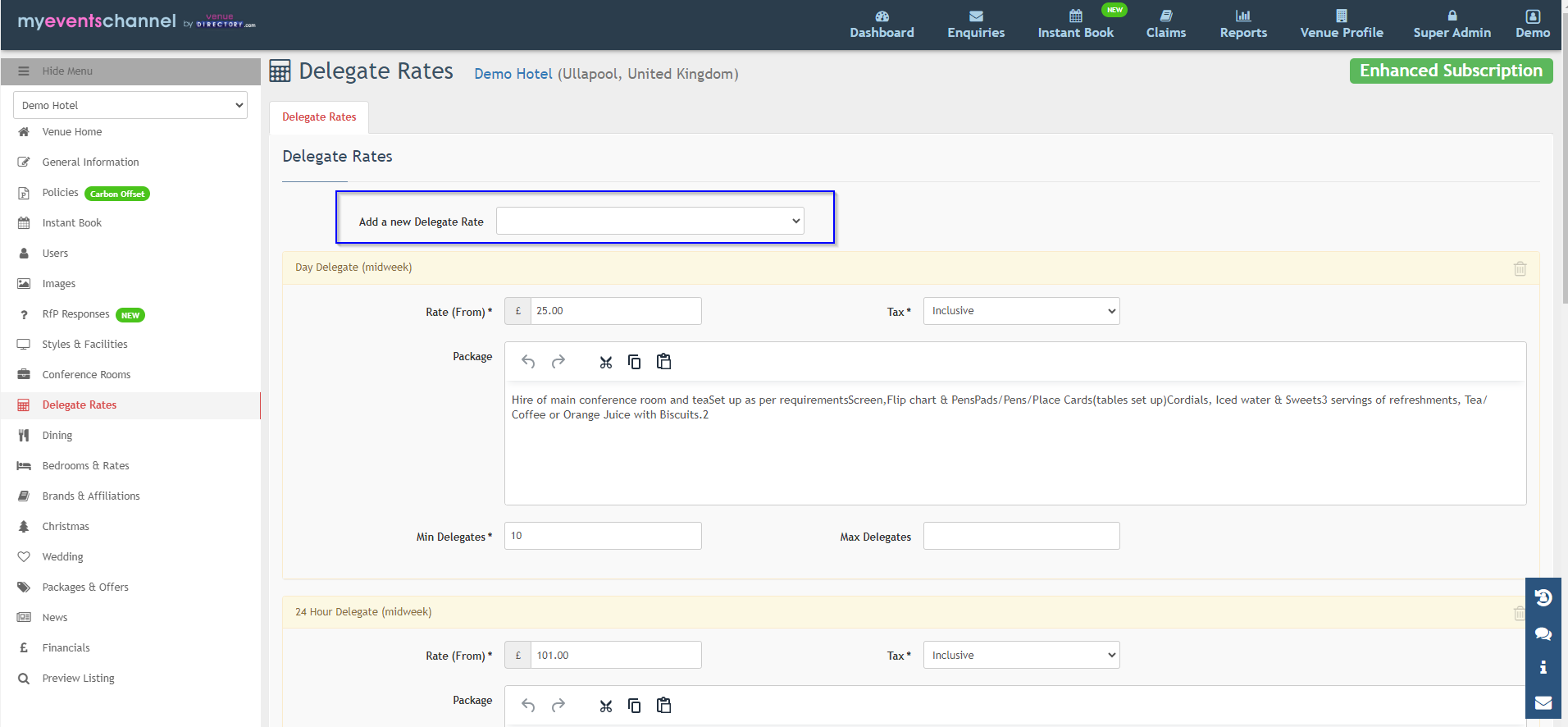
If you want to add a new Delegate Rate, you will need to click on the drop-down and select the rate you would like to add.
Once you select the rate you would like to add, you will need to fill out the Rate (From), whether it’s inclusive, partially inclusive or exclusive of tax, and add the package details and a minimum number of delegates.
Adding your delegate rates here will help to speed up your enquiry responses as the rates set here will pull through to the enquiry response form.
Dining
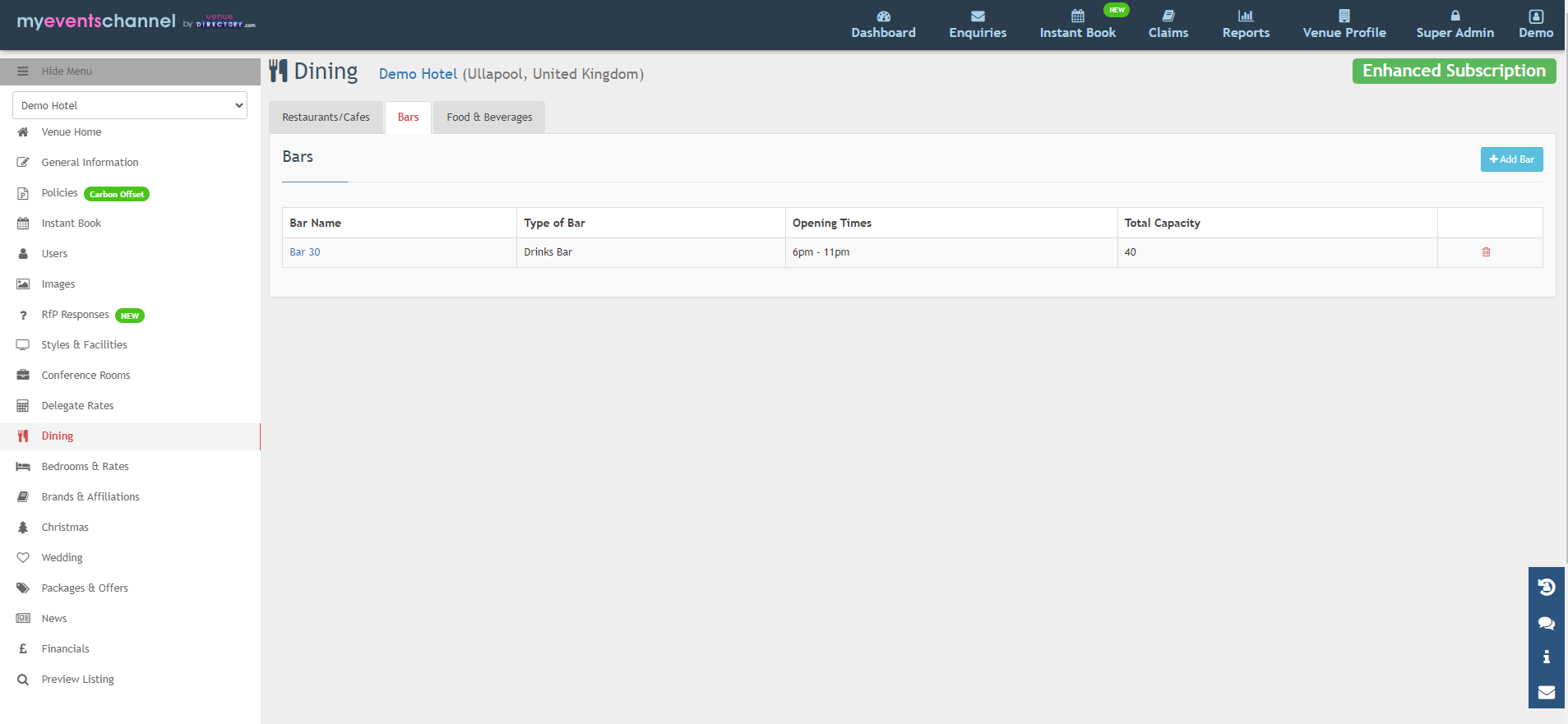
This section is where you can add Restaurants/Cafes and Bars you have onsite as well as your catering items available.
To add a new restaurant, you will need to click on ‘+ Add Restaurant’, type in the name of the restaurant, the type of cuisine, any awards, and the total capacity the restaurant holds.
To add a new bar, you will need to click on ‘+ Add Bar’, type in the bar name, the type of bar, opening times and total capacity.
Food & Beverage - this is the tab where you can add menus. To add a new menu, simply click on ‘+ Add Menu’ and select the menu type from the drop-down. Add the details into the menu text, add the price per person and select the relevant boxes (whether it’s available, taxable, commissionable if it offers multiple servings or unlimited servings). You will also need to type in the minimum servings.
Bedrooms
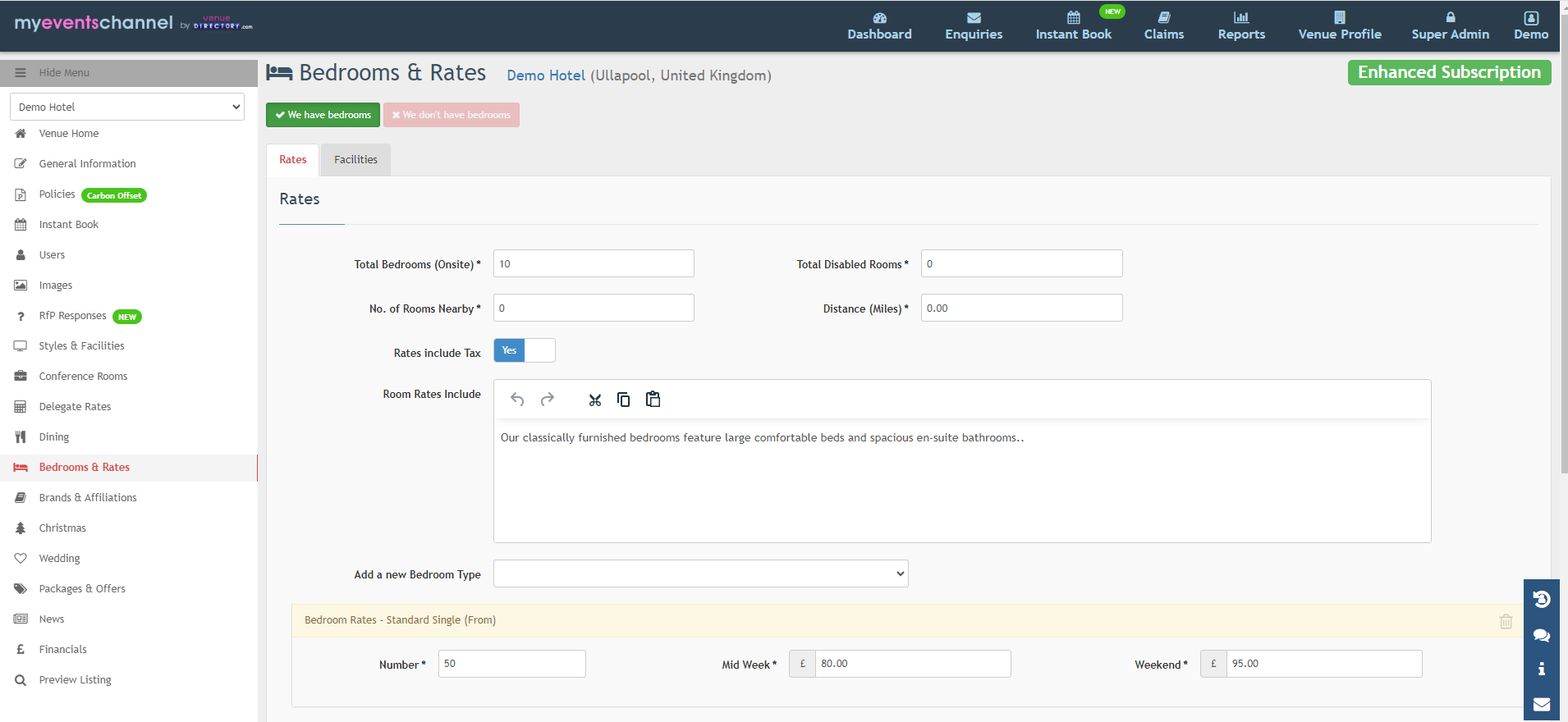
If your venue offers bedrooms, you can add the total number of rooms you have onsite, specify if you have disabled rooms and add your rates. You can also add into the text box what the room rates include.
To add a new bedroom type, click on ‘Add a new Bedroom Type’, select whether it’s a single, double or twin, and add in the rates.
If you don’t offer bedrooms on-site but they have rooms nearby, you are able to add this information as well and specify the distance in miles.
In the facilities tab, you can select which items are available in the bedrooms.
Brands and Affiliations
Brands and Affiliations is the one section that the venue isn't able to update by themselves. To make a change here please select the changes you want to make and then click on the ‘Request’ button. This will send the request to our Venue Support team to check and we will make the changes for you.
Affiliation/Association, this is where you could select if they are a part of Beam or MIA for instance. You would need to click on ‘Request’ for the changes to be made.
Accreditation/Awards, this is where you would add if any accreditation or venue awards.
Christmas
The Christmas party information will show on a separate website called christmaspartypeople.com and you will have to contact them first before being listed on their website. There is a charge for listing your Christmas parties with the christmaspartypeople.com
If you offer Christmas parties, you can add an overview, as well as your party information.
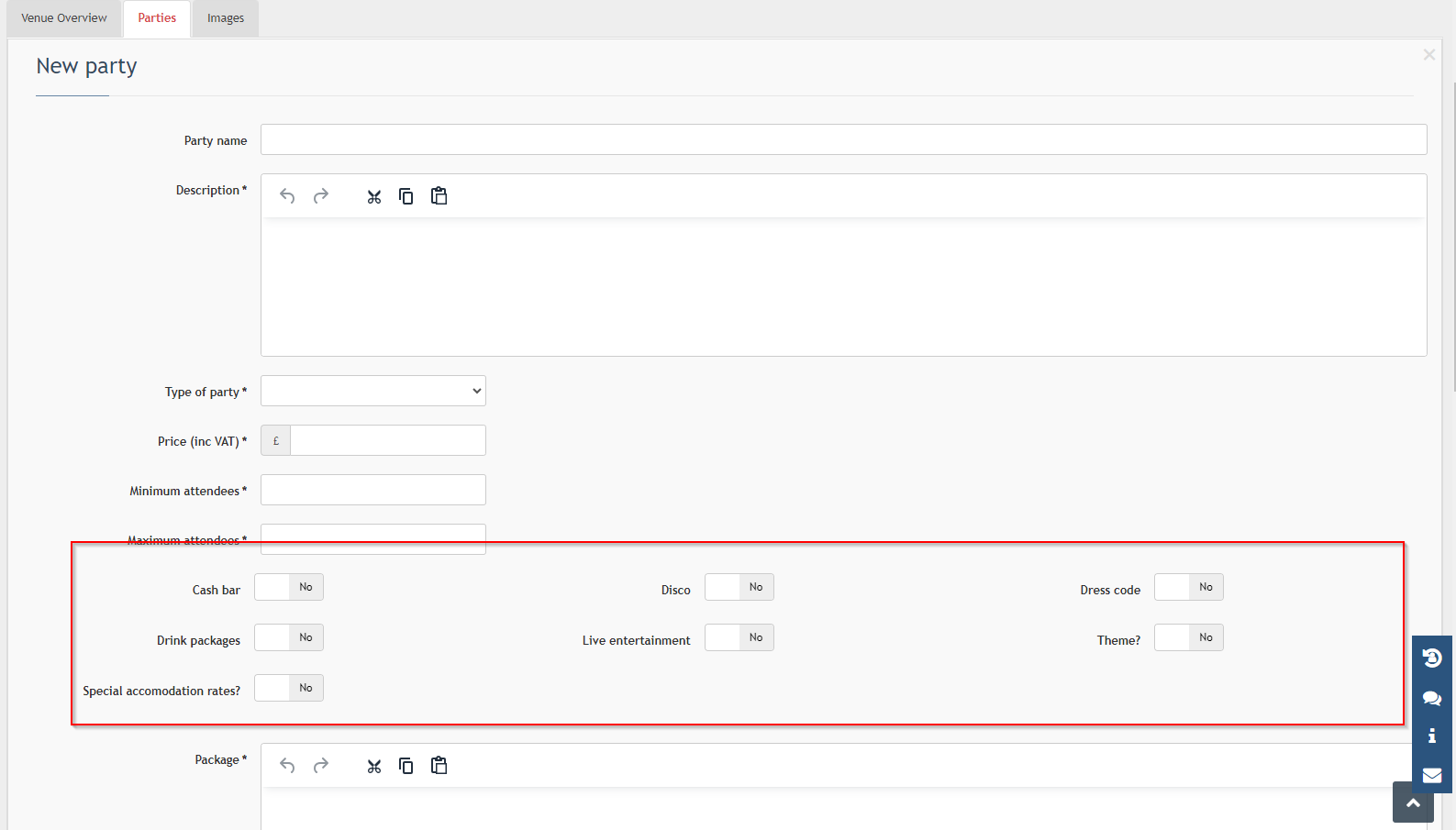
To add a new party, they would need to go to the ‘Parties’ tab, click on ‘+ Add Party’, add the party name, a description, whether it’s a shared or exclusive party, the price, minimum and maximum number of attendees. They can select from the below options and add the package as well.
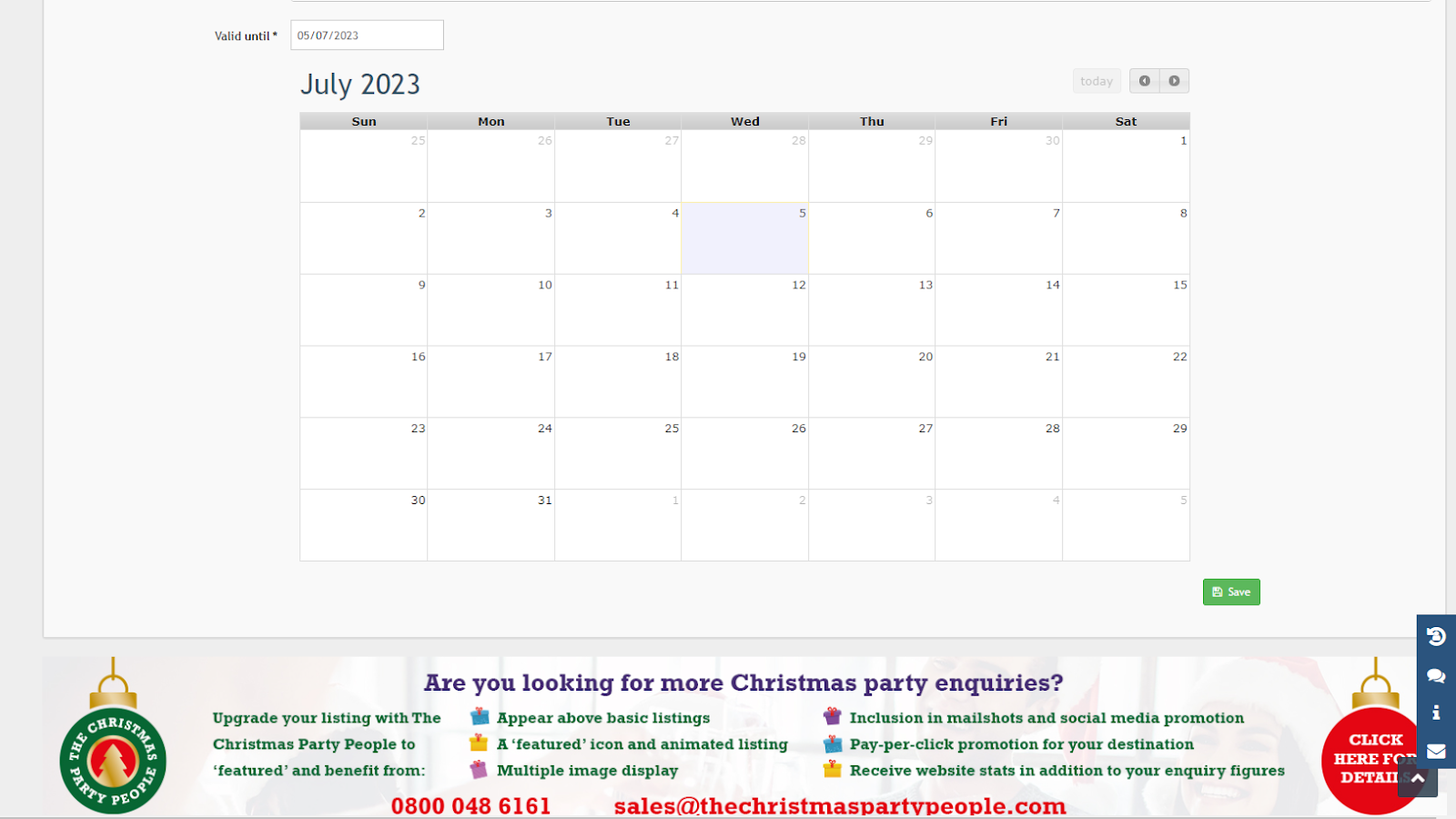
You will need to add the dates into the calendar as well before saving.
Weddings
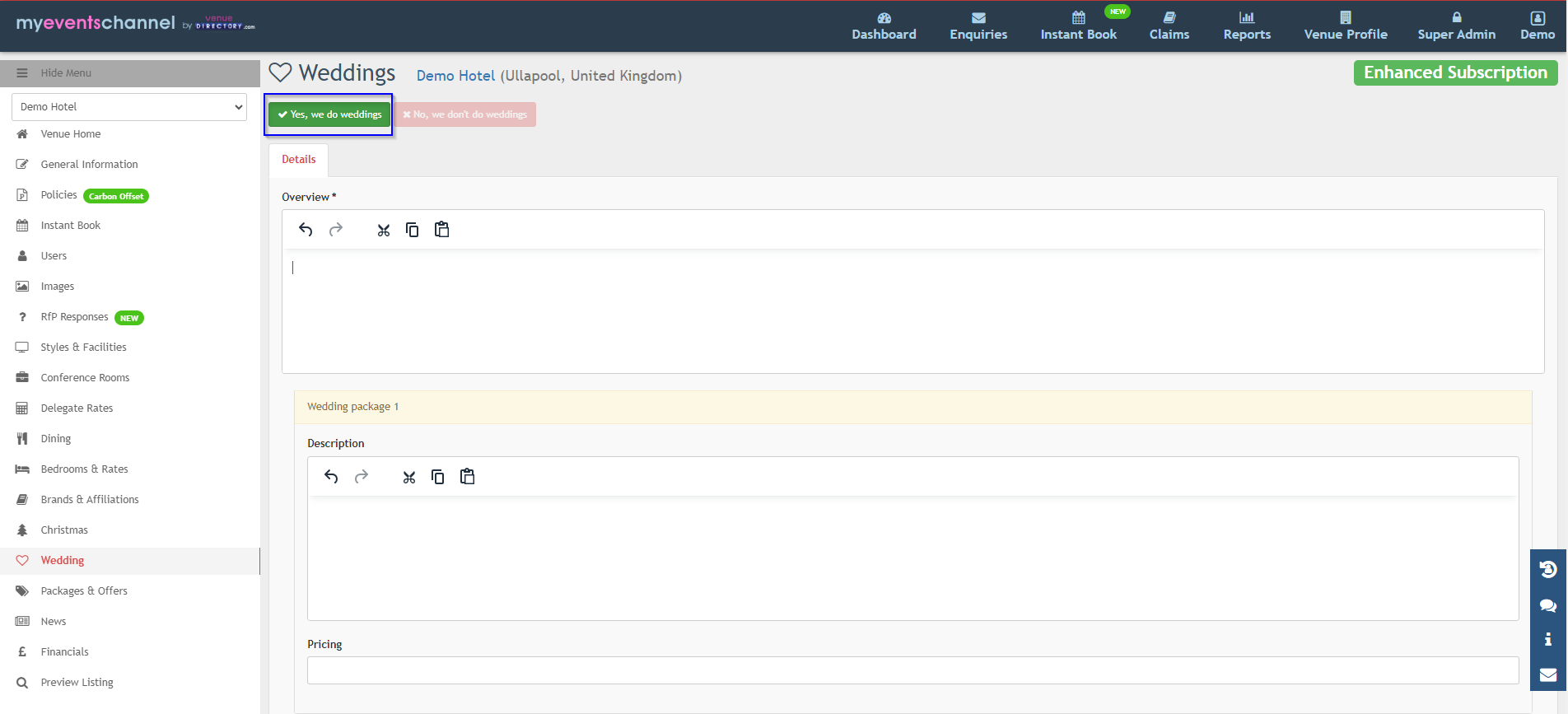
If you offer weddings, you can click on the ‘Yes, we do weddings’ and add an overview as well as your Wedding packages.
Packages & Offers
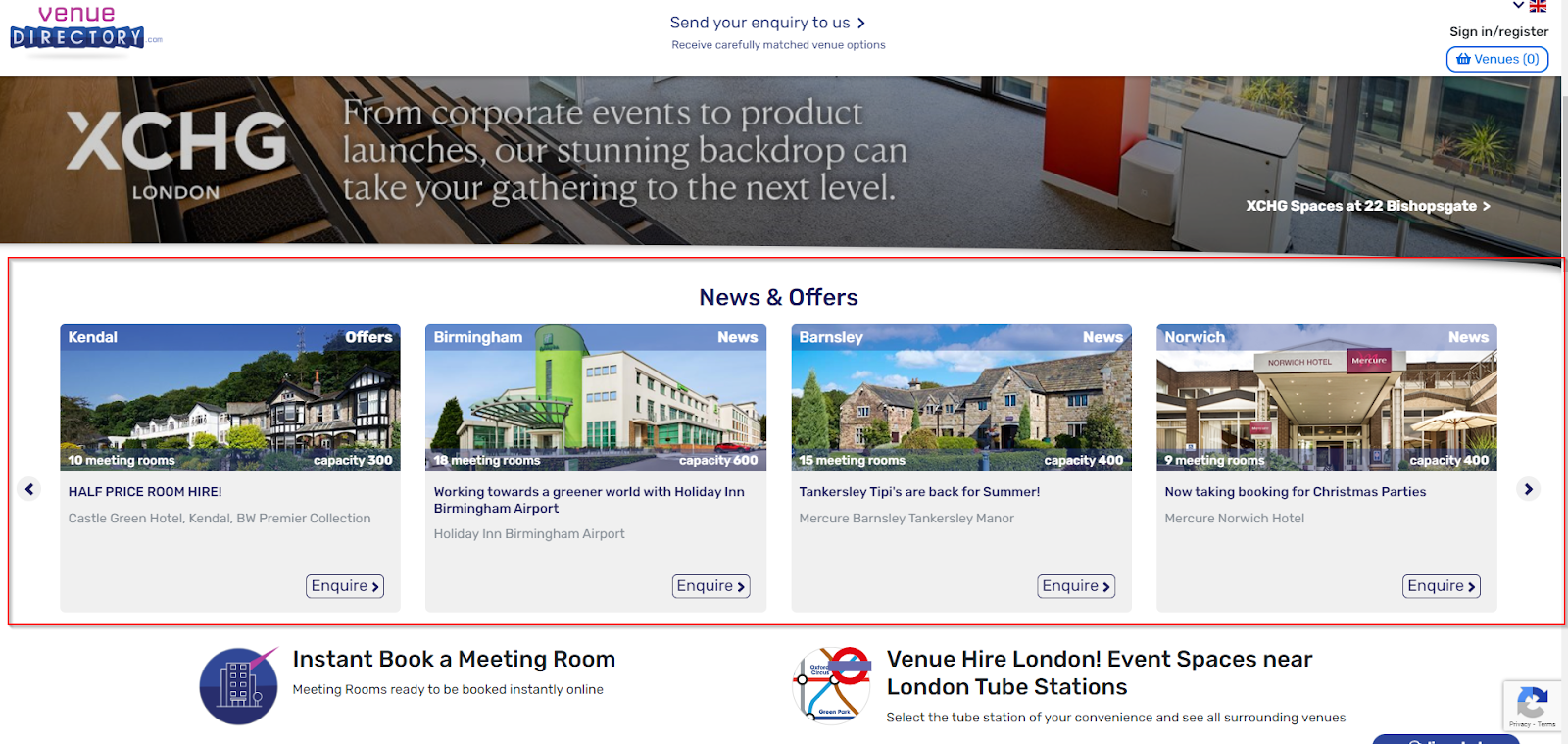
You can add Packages and Offers to your page. The offers will show on the venuedirectory.com website under the News & Offers section.
If you have added an Offer, when the agents are doing a venue search in GRATIS, a pound sign will show next to the venue name to indicate that you have an active offer.
Packages: To add a package, click on the ‘+ Add Package’ button and type in the name, description, and add your terms. You will then be able to choose the dates that the package is available between and when it’s visible. You will then need to add the minimum number of delegates and tax type (whether it’s inclusive or exclusive of tax). Add the starting price. At the bottom of the page, you are also able to add a PDF.
Offers: To add an offer, click on the ‘+ Add Offer’ button and type in the offer name, description, and add your terms. You will then be able to choose the dates that the package is available between and when it’s visible. Choose the minimum number of delegates and the tax type, and add the starting price. At the bottom of the page, you are also able to add a PDF.
The offers section is only for client offers and not agent offers. E.g. Increased commission. If you want to let the agents know about an offer that will benefit them please contact them directly.
News
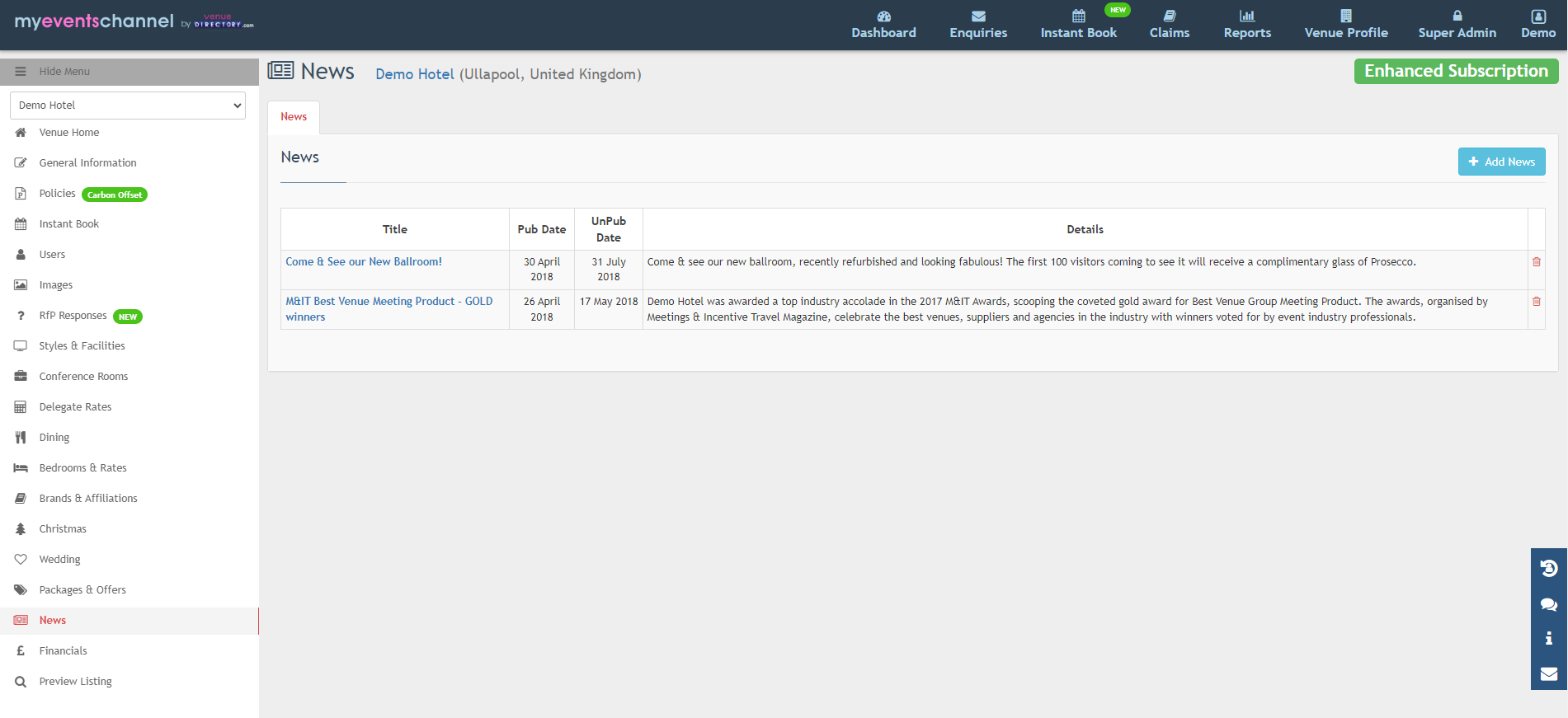
In the News section, you can add anything you’d like to shout about. Whether that is an open day, refurbishment, change of ownership, or any new awards. Again, this will show up on the front page of venuedirectory.com in the News & Offers section.
To add a news article, click on the ‘+ Add News’ button and add the article title, the publish between dates and the news details.
Financials
- Please note, that only Venue Managers and Super Admins can access the Financials page.
- This is where you would need to add your financial information such as registered company name, company registration and address.
Was this article helpful?
That’s Great!
Thank you for your feedback
Sorry! We couldn't be helpful
Thank you for your feedback
Feedback sent
We appreciate your effort and will try to fix the article